Neocities guide: publish your first personal website
Published
To publish your first Neocities website, create an account, edit index.html and upload the files your page uses. This guide uses three pages—Home, Collection and Links—so you can link pages as well as publish them.
On this page
Download our three-page starter, or open its homepage to see the files working together. The example includes a paper-boat illustration, a CSS file that controls colors and layout, and links between the pages.
Choose the subject before the decoration
Choose a subject with one entry ready to publish: a favorite book, a photograph from a walk or a short game review. Put its title, image and description on the collection page.
Neocities describes its service as a place to publish personal HTML sites and dates the project to 2013. HTML is the code for headings, paragraphs, links and images. You control the page files and can keep copies on your own computer.
Your account name forms the site’s address. Put the longer project name in the page’s <title> (the browser-tab label) and <h1> (the main heading); these can explain more than the address alone.
Learn the publishing controls
Create a site through Neocities, then open its dashboard, where you manage your files. The official lessons start with HTML and show you how to publish a real page. Later lessons cover more HTML, CSS and JavaScript, which adds features such as buttons that respond to clicks. Follow the first lesson if you want a guided introduction before using the starter.
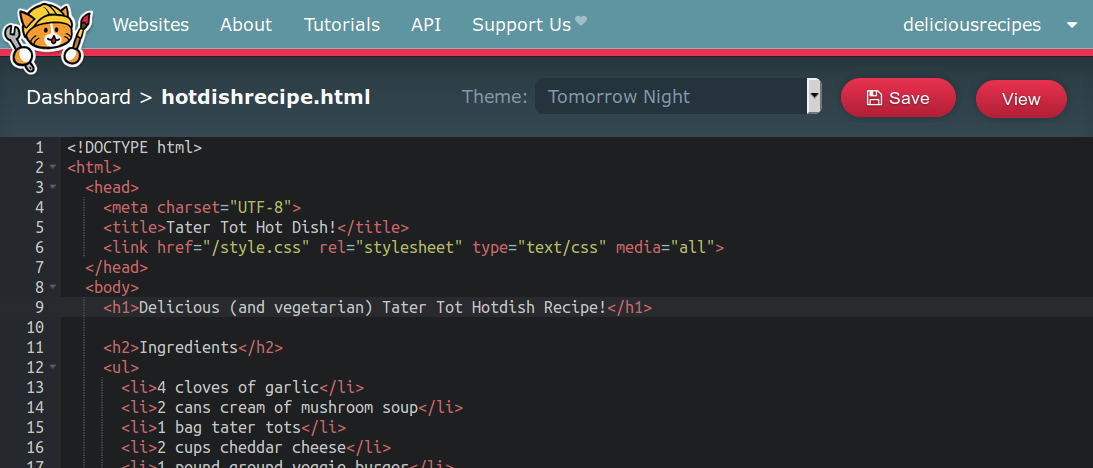
The dashboard provides page editing and file upload. The tutorial explains that a file named about.html becomes a page you can link to. Our starter uses the same simple arrangement: index.html, collection.html, links.html and style.css sit together.
Unzip the download on your computer. Open index.html in a browser to preview it, then open the same file in a plain-text editor to change it. Keep the filenames intact for your first round of edits so the links still open the right files.
Know what Neocities publishes
Neocities puts the HTML, CSS, JavaScript and other files you upload on the web. Each page has its own address: a link to collection.html opens that file. You can keep pictures in an images folder. Use that exact folder name in your image code, such as images/doorway.jpg.
A guestbook service stores and shows visitor messages. The guestbook guide explains how to add one.
Make three useful edits
First, replace The Small Things Club with your own site title. Update the title in each page so visitors recognize the same site as they move around.
Next, rewrite the homepage introduction. Include what you collect, why you care about it and what somebody should open first.
Finally, change the collection entry. Replace the paper boat with your own subject and explain one detail worth noticing. If you add a photograph, use a short filename such as doorway.jpg, upload it beside the page, and supply a useful text description:
<img src="doorway.jpg" alt="A blue doorway with a small brass sun above it">The MDN guide shows how to add headings, paragraphs, links and images with HTML.
Upload a complete small site
In the dashboard, choose Upload and select the extracted index.html, collection.html, links.html and style.css files, plus any images. Upload the files inside the ZIP, putting the HTML files in the dashboard’s main file list, outside any folder. The homepage should then open at https://your-name.neocities.org/, with the collection at /collection.html.
Open your public homepage and follow Collection → Home → Links. If Home still shows the welcome page, confirm that you named the new file index.html, including the .html extension. If a link shows a 404 (page not found) error, compare its href address in the HTML with the uploaded filename.
If an image is missing, compare the uploaded filename with the name in your page code. Match capital letters and the file ending. If colors or spacing disappear, check that style.css sits beside the page file. Make sure the page’s link to that file uses the right name.
Add one personal connection
Give your links page descriptions. Explain what you enjoy at each destination and what a visitor can find there.
Later, you can add a guestbook, a tiny 88x31 link button or a webring connection.
Keep your local folder as the working copy and download updated files when you edit on Neocities. Our website backup guide explains how to keep a dated record. For styling, follow the 90s-style website build.