Preserve a personal website: files, captures and backups
Published
To keep a personal website, save its working files and a dated copy of the page visitors saw. The files let you edit and rebuild it. An archive saves a public copy, called a capture, at an address you can share later.
On this page
Start with our site inventory and copy checklist. Fill in the original web addresses, filenames on your computer and links to saved copies as you work.
Gather the complete working folder
Copy the page files, style files, scripts (small programs), images and downloads into a dated folder. Keep every file and folder in the same arrangement so the links still work.
A repository holds a project’s files on GitHub. If you keep your site there, use Code → Download ZIP on its GitHub page to save the files. GitHub’s source-archive guide explains this step. A full clone copies the files and their edit history. Choose it if you need to keep that history too.
List the pages and files to save
Add a row for each page or download you need: /, /about.html, a sample collection entry and each download. Record the filename on your computer and the link to its saved public copy. Include the style and image folders. A blank filename cell shows that you still need to collect something.
Write a short test: open the homepage, follow a collection entry, return through the menu and visit the links page. Use these steps to check the saved version.
Save a dated copy online
The Internet Archive’s Save Page Now guide shows how to enter a page’s address and keep the link to its saved copy. The tool saves that page, not every page linked from it. Save each important page separately, including entries several clicks into a collection.
Paste each saved-copy link into your file list. Record the save date separately from the publication date shown on the page.
Open the saved version and follow your test steps. Check the words, menus, images and downloads that matter to the project. Add a short result beside each row in the file list so you can see which parts you have examined.
Record an interaction when it matters
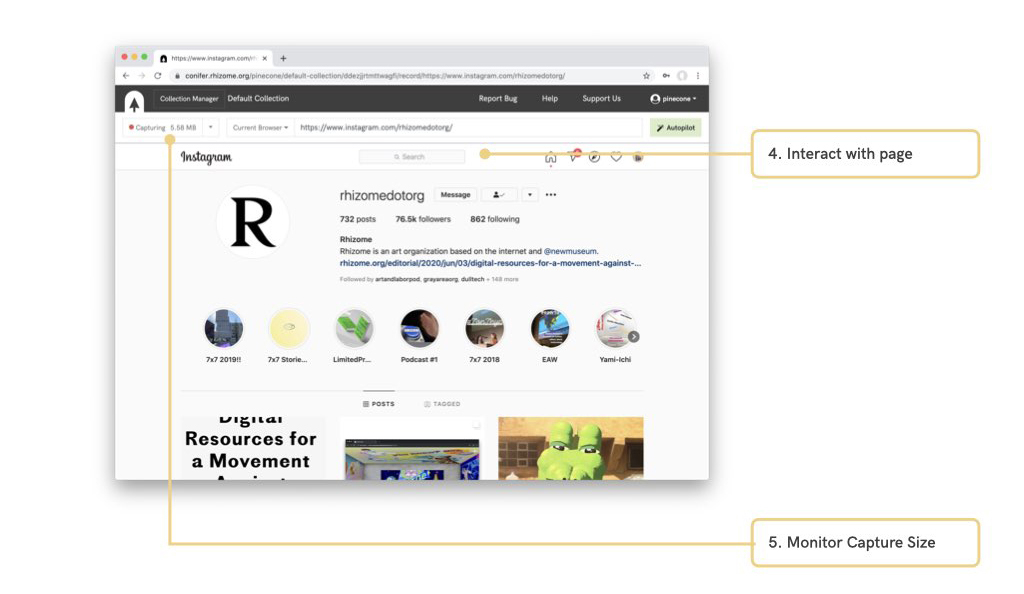
A site may depend on actions such as opening panels, moving through an illustrated sequence or loading a particular view. Write down the steps needed to show each feature.
The screenshot comes from Conifer’s historical guide. The service closed in June 2026, so you can no longer create or change collections there.
For a new capture, install ArchiveWeb.page through the official Chrome Web Store link on its site. Open your homepage, click the extension icon and choose START. Visit the important pages, open panels, click through picture galleries and play any clips you need to save, then choose STOP. Open the extension’s HOME view and test the saved pages. Follow the capture guide and replay guide for the full steps.
A short screen recording or still image can also show how the page looked after an action. Keep its date, original web address and a description of the action with the file.
Check the local copy too
Open the homepage from the saved folder. Follow its links and check the images. Some sites need a local server, a program on your computer that sends pages to your browser. A site may also need a command that turns project files into finished pages. Write down any exact commands and software versions needed.
Try our three-page starter for practice. Its pages and style file sit together. Copy the whole folder and check that its links still work.
Keep a second copy on another drive or storage service. Label both copies with the date and version. Update the file list when you make a new backup.
Add a restoration note
Put a short text file called README beside the homepage. Include:
Site: Small Things Club
Public URL: https://example.org/
Saved: 2026-11-10
Start: index.html
Check: Home → Collection → Links → Home
External service: guestbook hosted separately
Add the author, creator credits and archive links for your own project. The external-service line names features, such as the guestbook, that depend on another website. Use the archive-search guide if an older page is already missing.