Website guestbooks: add Atabook to a personal site
Published
A guestbook lets visitors leave messages about your site. To add one, create a book with Atabook and link to its web address from your homepage. Atabook stores the messages and provides the form. You choose whether entries appear at once or wait for your review.
On this page
Our original invitation panel gives you HTML code for the link and CSS code for its colors and layout. Replace the sample address with your own guestbook address after setup.
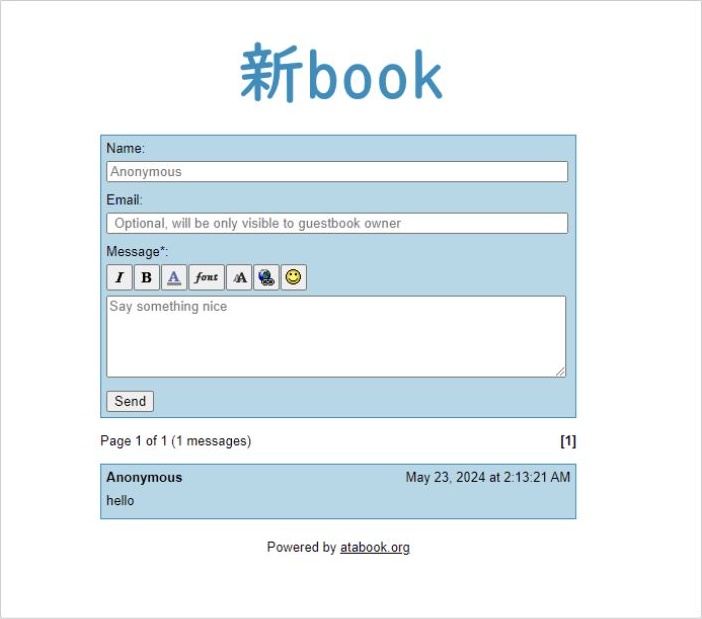
Choose the job of the guestbook
Write the invitation before choosing colors. “What brought you here?” encourages an introduction. “Which little game should I try next?” gives visitors a specific topic.
Decide where the guestbook belongs. A small site can link it from the main menu. A larger collection may place the invitation after an article or beside an about page. Give the link a label such as Read and sign the guestbook so people know what happens next.
Set up a guestbook with Atabook
Atabook is a modern guestbook service launched in 2024 after 123Guestbook closed, according to its feature page. Its published feature list includes layout controls, optional message review, custom questions and replies.
Create an account and choose a guestbook address. Set a title that matches your site, then write a short welcome explaining the subject and the kind of messages you enjoy receiving.
Choose which boxes visitors need to fill in. A name or nickname and a message may be enough. If you add a custom question, make its purpose obvious. A question about the visitor’s favorite page can tell you which part of the site people remember.
Decide how messages appear
Use the service’s review settings to choose whether entries appear immediately or wait for your review. Set a routine you can maintain: read new messages, respond when you have something to add and keep the visible conversation connected to the site.
Atabook’s feature page documents editing, deleting and replying to entries. Try those controls before sharing the address widely.
Test a message before sharing the book. Open it in a private browser window and submit “Guestbook setup test”. Return to the dashboard where you manage the book. Find the entry, approve it if needed, then delete the test.
Give it a visual connection to your site
Use Atabook’s appearance controls to match your site’s colors and fonts. Choose a plain background and text that stands out against it. Use another color for links or headings. You can also upload a picture for the top of the book.
Atabook’s Supporter plan lets you add your own CSS styling code or domain name (web address). The basic setup has its own layout controls. You can change the invitation on your website separately from the guestbook.
The supplied invitation panel uses a paper-colored background, a double border and a short introduction. Copy its section and CSS into your page, or adapt the wording and colors to fit your project.
Add the link
Use this link:
<a href="https://your-name.atabook.org/">
  Read and sign my guestbook
</a>
Replace your-name with the actual address you created. Keep the complete address, including https://, when you link from your own site. A small 88x31 button can accompany the link, but keep a clear text label available too.
Open the public page and follow the link. Read the guestbook title, welcome and fields as a visitor would. Add a link back to your homepage and test that link too.
Make the invitation specific
Put a question about one collection item beside that item; use the main menu for a general invitation.
A webring helps visitors arrive from related sites. The guestbook gives them a place to respond after reading yours.