Windows 95 and 98 design: menus, taskbars and bevels
Published
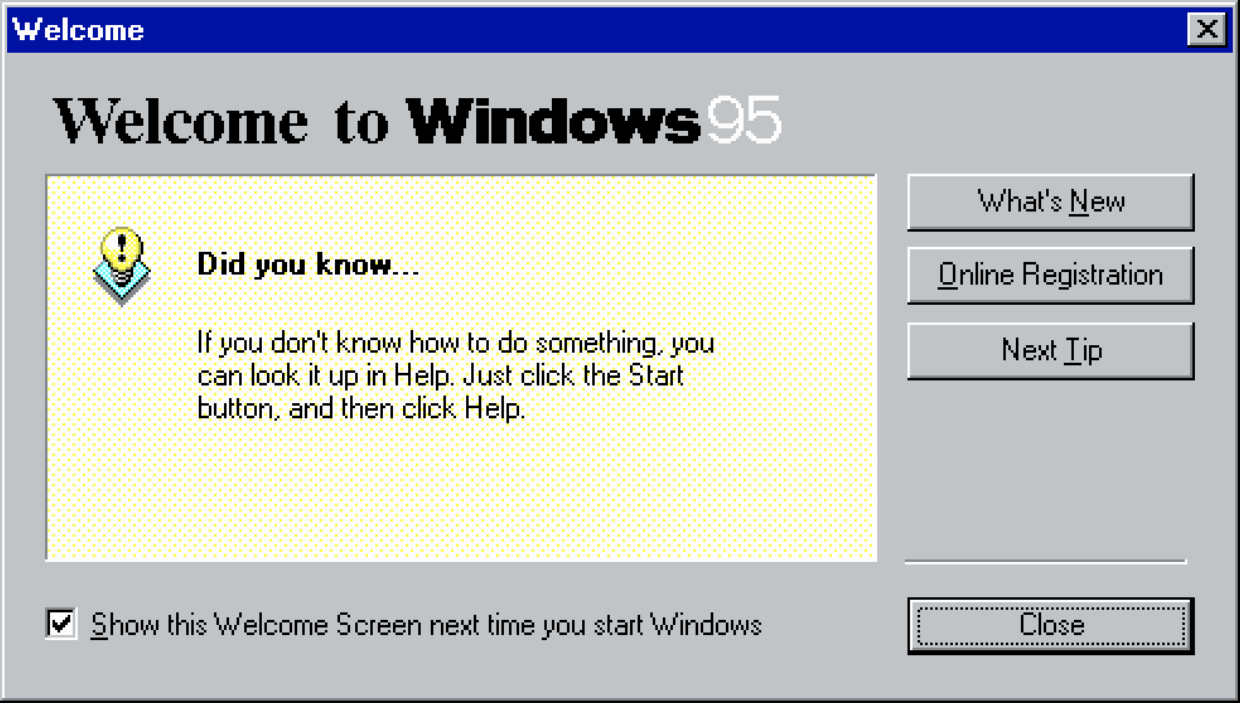
Windows 95 and 98 used small changes in edges and color to show what controls did. A bright upper border made a button look raised. Reversing the light and dark edges made a text box look sunken. A colored title bar marked the window in use.
On this page
What changed in each release
| Release | Launch date | Useful identifying context |
|---|---|---|
| Windows 95 | 24 August 1995 | The Start menu opened tasks; the taskbar let you switch between them |
| Windows 98 | 25 June 1998 | Kept the desktop style, added closer ties to Internet Explorer and supported more hardware |
Microsoft’s Windows 95 retrospective highlights the Start menu and taskbar. Its Windows 98 launch announcement focuses on the closer browser links, USB devices and DVDs.
A screenshot’s window title, app and visible commands help identify its version. Users could change colors and wallpaper, so familiar colors alone are not enough.
Read the raised and inset edges
A raised button has light edges at the top and left, with shadows at the bottom and right. A sunken text box reverses them. These edges make nearby gray rectangles look as though they have different depths and jobs.
Open the working window study. Its text box looks sunken; Save note looks raised. Type a sentence and select the button to download a text file.
In the source, reverse the button’s light and dark border colors. Compare its depth at normal size to see the effect of a two-pixel edge.
Separate three kinds of focus
The active title bar marks the window you are using. A selection highlight marks an item or some text inside it. Keyboard focus marks the button or box that will respond when you press a key.
When using this style on a website, keep all three meanings clear. Use real buttons and text boxes. Show which item the user selects, and keep a visible outline around the control they reach with Tab. Using the same navy highlight on every rectangle would hide these differences.
Let the taskbar show the work
A desktop icon opens an app or file. The app’s window holds the work, and its menus group commands. The taskbar lets you reach open windows when others cover them.
Read a screenshot by following one action through those levels: open a document, find a command, then switch to another window.
Small object icons give another clue. The shapes of folders, disks and documents help you recognize them; labels give exact names. Keep the outline and label clear at small sizes before adding detail inside.
Build one window that does something
Download the window-study source and change the title and note prompt. Keep its text box and save action, then resize the browser and press Tab through the controls. Check that you can still write and download the note.
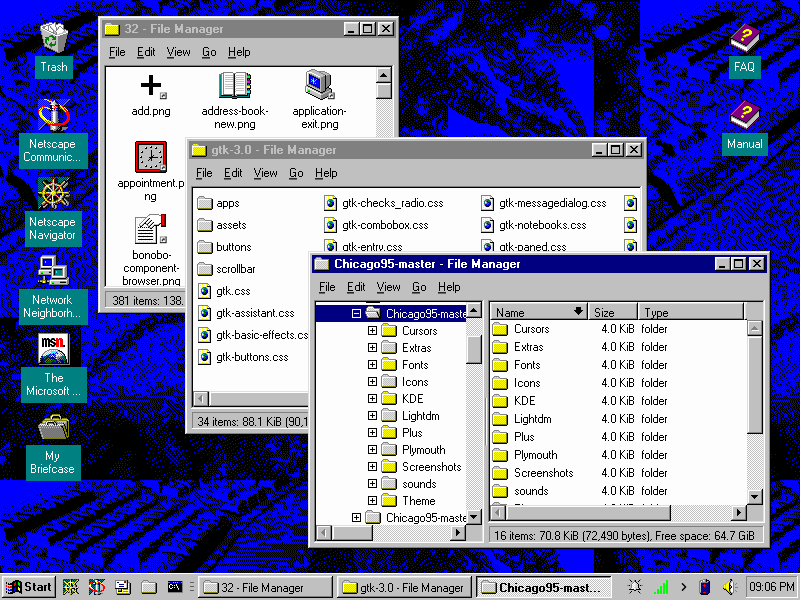
Chicago95 recreates the style on Linux. It lets you set icons, app controls and window borders separately, then match their colors.
For the next shift in Windows design, compare XP’s color and depth and draw an XP-style icon.