Windows 95-style themes on Windows 11 and 10
Published
Use teal wallpaper, a dark accent color and a pixel cursor for a Windows 95/98 look. This works in Windows 11 or 10. The theme settings save wallpaper, colors, sounds and pointers together. The Start menu, taskbar layout and app controls still work as they do now.
On this page
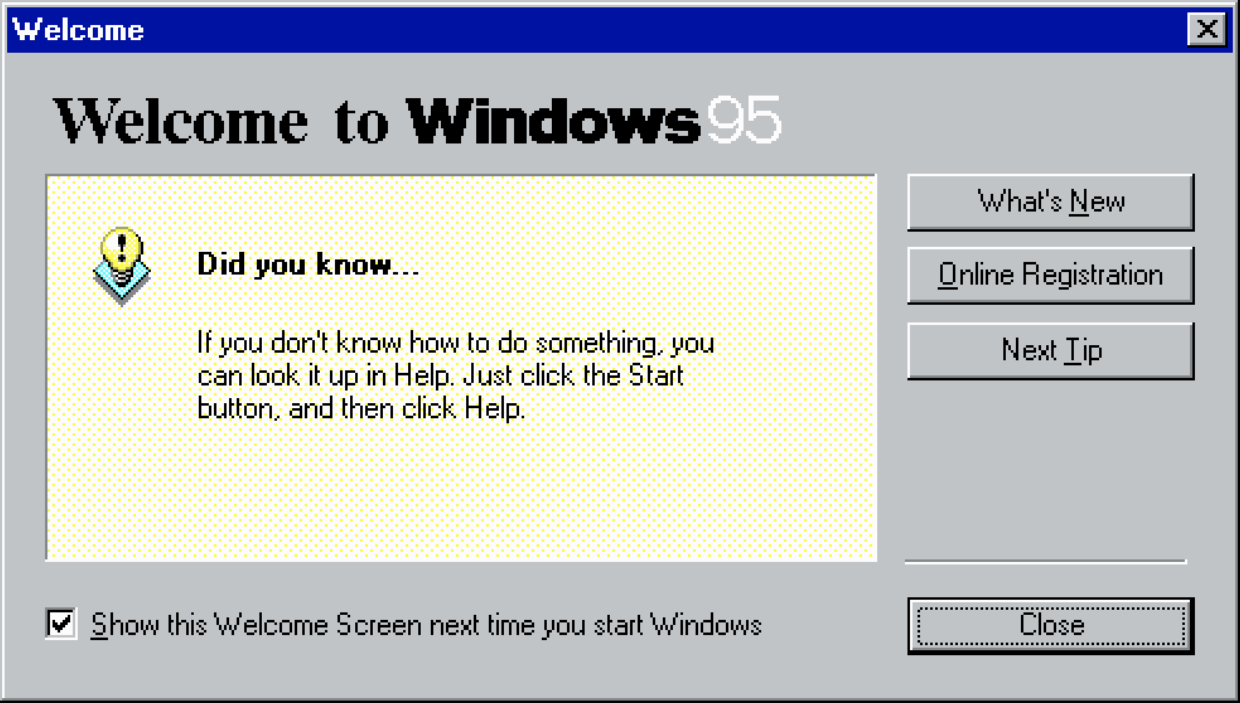
Start in Settings → Personalization → Themes on either system. Open Background, Color or Mouse cursor there, then follow the settings below. The Windows 95/98 design study explains the original gray controls and raised window edges.
Set the teal background
Download the 1920 × 1080 desktop wallpaper and keep it in Pictures. Open Settings → Personalization → Background, choose Picture, then browse to the PNG.
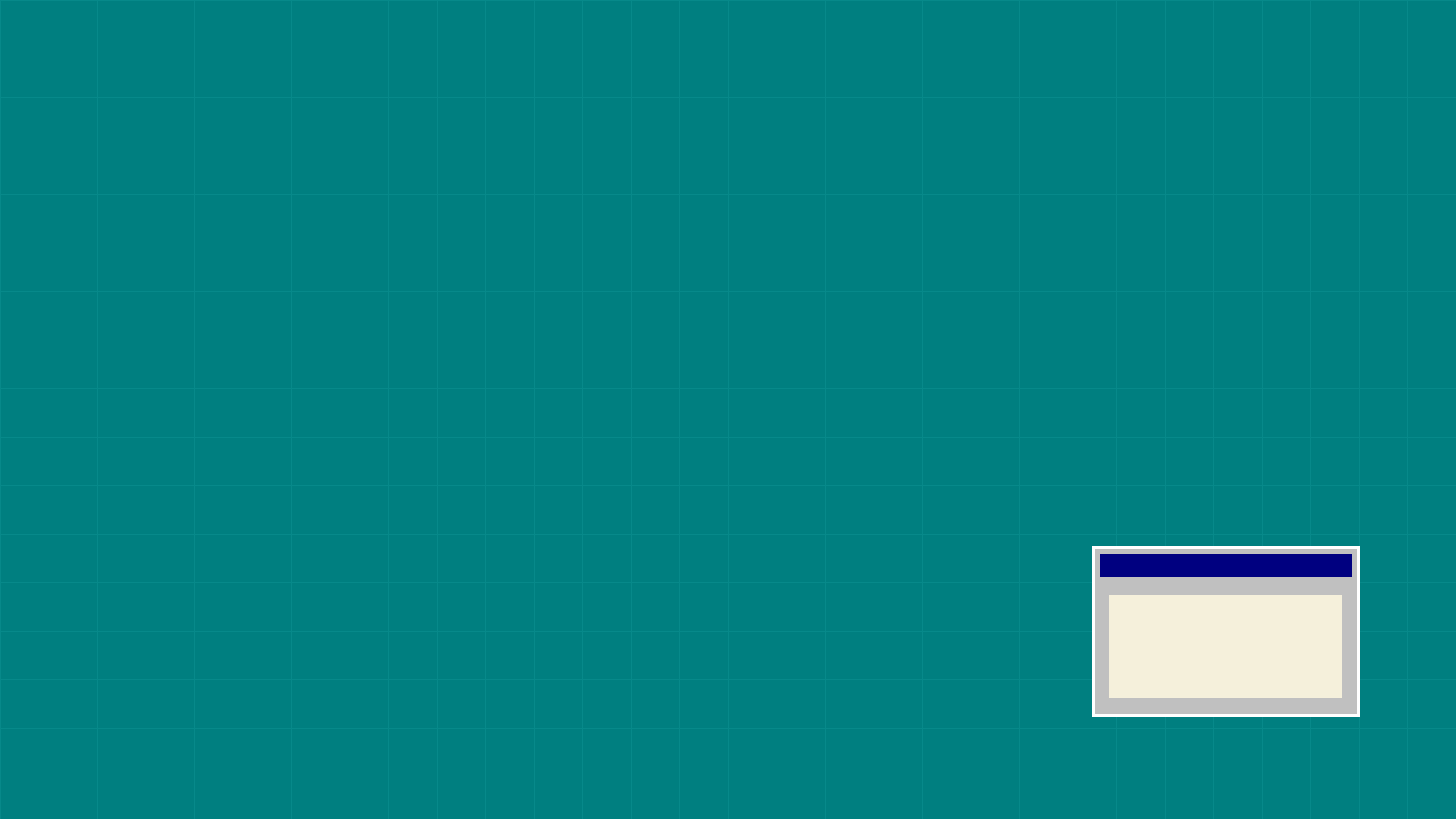
Choose Fit to show the whole picture or Fill to cover the screen, cropping the edges if its shape differs. Microsoft’s background guide also explains solid colors and tiled images. Solid teal closely matches the plain desktop in many classic Windows screenshots.
Keep the wallpaper in its chosen folder after applying it. The theme needs that source file when you use the background again.
Coordinate the color and pointer
In Personalization → Colors, choose an accent color that stands out against teal. Navy helps mark the window you are using; neutral gray draws less attention away from desktop icons.
Record your starting settings and chosen values in the setup sheet. Use its restore column to note how to put each setting back.
For the pointer, follow the retro cursor guide. Start with Normal Select and leave the text, resize and busy pointers distinct. Check the arrow’s tip against a white document, a dark page and the desktop; its click point matters more than matching the wallpaper exactly.
Save and share the theme
Open Settings → Personalization → Themes. Choose the background, colors, sounds and cursor, then select Save and name the set. Microsoft’s theme documentation explains how these settings work together.
To create a file you can share, right-click the saved theme and choose Save theme for sharing. Windows creates a theme file ending in .deskthemepack. Keep your original artwork and setup sheet beside it for later edits.
Use the classic layout as a reference
Microsoft’s Windows 95 anniversary account explains the layout. The Start menu opens tasks; the taskbar keeps open work in view.
Choose a few desktop shortcuts for documents, pictures, music and your browser. Give them short labels. Open a folder and switch between two windows to check the color and pointer in daily use.