Chicago95 on Linux: install a classic Xfce desktop
Published
Chicago95 brings Windows 95’s gray controls, blue title bars and familiar object icons to Linux. Use Xfce, the desktop system covered by this guide. Its Appearance, Window Manager and Panel settings let you match the different parts of the screen.
On this page
For Linux Mint, use its Xfce edition for these steps. Mint’s Cinnamon and MATE editions have different desktop controls.
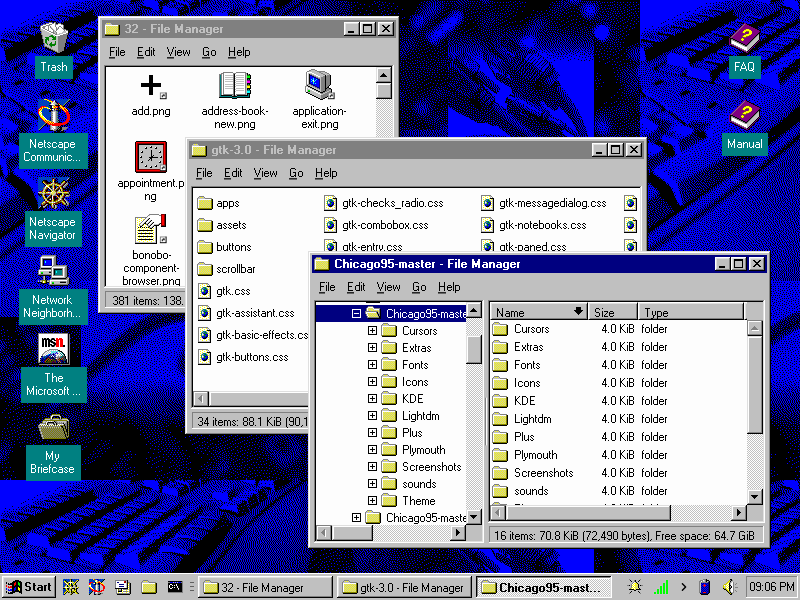
Understand what each theme changes
The Chicago95 project began with Grassmunk and credits AdrianoML, EMH-Mark-I and other contributors. Its GTK theme changes buttons and other app controls. Its Xfwm theme changes window borders, and its icon theme supplies pictures for files and menus.
A window can have the right title bar but the wrong buttons. That mismatch tells you which setting to check.
To use an old Windows 98 theme pack, the project also includes Chicago95 Plus!, a tool for loading it. The steps below install the main Chicago95 theme.
Copy the theme for your user account
Save your current theme, icon, pointer and panel selections in the theme record. Then download the project files and extract the folder.
The project’s installation guide offers installer.py to guide you through setup. To install by hand, open a terminal in the folder that contains the extracted Chicago95-master folder and run:
mkdir -p ~/.themes
mkdir -p ~/.icons
cp -r Chicago95-master/Theme/Chicago95 ~/.themes
cp -r Chicago95-master/Icons/* ~/.icons
These paths install the theme and icons for your account. If you extracted a differently named folder, substitute that name in the two copy commands. Log out and back in if the new choices do not appear in the settings panels.
Choose the Xfce theme settings
| Xfce control | Selection |
|---|---|
| Settings → Appearance → Style | Chicago95 |
| Appearance → Icons | Chicago95 or Chicago95-tux |
| Settings → Window Manager | Chicago95 |
Open a file window after selecting all three. Compare its title bar, buttons and folder icons. Choose text large enough to read on your screen before changing the panel’s size.
Start with a plain teal desktop and one bottom panel. Put the app menu first, shortcuts to frequent apps next, open-window buttons in the middle and status icons at the end. Make the panel tall enough to read its labels, then lock its position.
Fix the application that stays different
If only the outer border looks wrong, return to Window Manager. If the border matches but the app’s controls do not, check which toolkit—the code used to draw its controls—the app uses.
Apps built with GTK4 or libadwaita need the separate style-file steps in Chicago95’s installation guide. They do not use the Xfce Appearance choice in the same way. The guided installer adds a line that loads the theme in your local ~/.config/gtk-4.0/gtk.css file. The manual instructions show the marked block to add yourself. Keep any existing rules when combining styles.
The project also gives separate steps for apps built with Qt and apps installed as Flatpak packages. Follow the section for your app instead of repeatedly changing the desktop theme.
Finish the working desktop
Open a file chooser and a long menu, then select text and move between controls with Tab. Check for cut-off labels and a clear highlight around the selected control. These problems are easier to spot here than on an empty desktop.
Update the theme record once all the parts match. The Windows 95 and 98 design study explains the raised edges and selection highlights behind the look. The desktop companion guide shows how to add a small animated pet.