Winamp skins: find classics and choose WSZ or WAL
Published
Winamp skins changed a small music player into chrome machinery, bright plastic, band artwork or a miniature game world. Artists changed the small images, called bitmaps, around a fixed layout. Tiny borders, display lettering and pressed buttons carried much of the design.
On this page
Start with the Winamp Skin Museum for historical examples, or try the original color sets below. Choose a player before downloading a skin so you get a file type it can open.
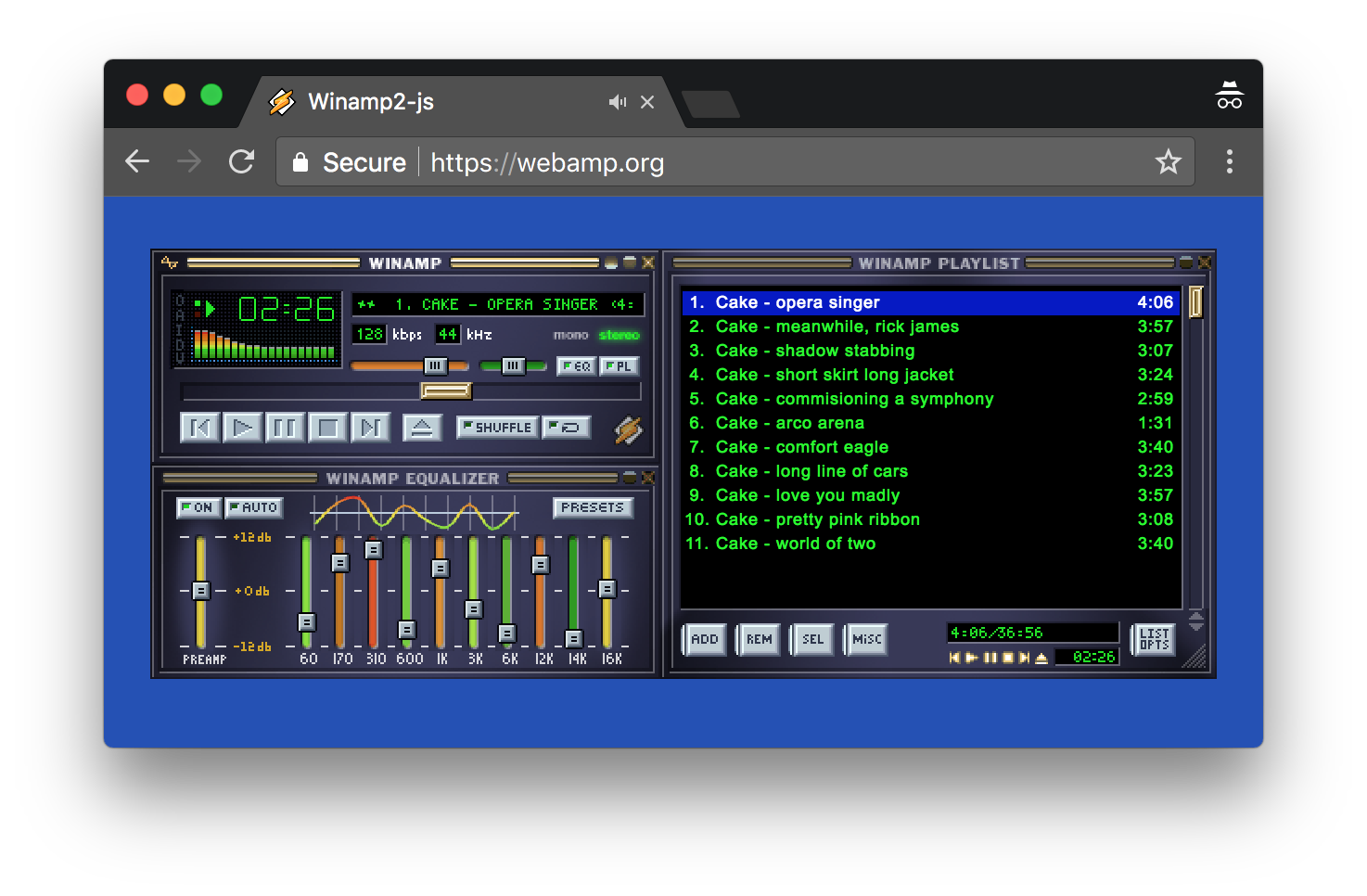
Search the museum by a remembered detail
Try a band, color, material or game name. Open a result in the working preview and compare the main player, equaliser (the tone controls) and playlist. Record the artist and source when the skin’s details list them.
Jordan Eldredge’s September 2020 account explains how he made the museum’s screenshots. He used software to open each skin in Webamp and capture it. Each image shows how the skin looks on the whole player.
The launch collection contained around 65,000 skins. Eldredge also used reactions to his skin-sharing bot to help order the collection.
Use the skin-study sheet to record one design’s creator, text, buttons when pressed and playlist colors. A note such as “lime track text inside a dark display” gives the next search a useful clue.
Choose a skin file for your player
| Package | Structure | Suitable route |
|---|---|---|
Classic .wsz |
A zipped folder of small images and text settings | A player that opens classic skins, including standard Webamp |
Modern/freeform .wal |
A different skin system with flexible layouts | A desktop player that supports modern skins |
| PNG preview | A picture of a skin | Visual reference |
Winamp’s desktop guide explains support for classic and modern skins and the Options → Skins menu. Webamp’s constructor reference shows how to load classic skins from web addresses and offer a choice of skins.
If a player rejects a skin, check which file types it supports before renaming files. Changing .wal to .wsz leaves the contents in the original format.
Try three original palettes
The Back to the 90s skin collection supplies Blue Hour, Moss Circuit and Rose Quartz as classic skin files. Its PNG previews show how the image pieces fit together in the player.
Blue Hour pairs navy with cyan. Moss Circuit uses green surfaces and warm pale text. Rose Quartz combines plum and pink. Open the collection’s Webamp preview, load a color set and compare the selected track with the other rows.
Check the controls both at rest and while pressing them. Their colors should make it easy to see whether music is playing, where the sliders sit and which track you selected.
What the tiny canvas teaches
The main classic player is only 275 × 116 pixels. A highlight that looks subtle when zoomed in may stand out too much at normal size. Keep the track text clear and save the strongest colors for controls and selections you need to spot.
For your own variation, choose one visual idea and use it across the main player, equaliser and playlist. The classic skin tutorial supplies the coordinates and starter artwork; the Webamp guide shows how to test the finished skin with your own music files.