Make a Winamp skin: edit bitmaps and package a WSZ
Published
A classic Winamp skin uses bitmap sheets: images that hold the artwork for buttons, backgrounds, sliders and window edges. The player copies rectangles from those sheets into place. Keep each rectangle in the same position while changing its artwork.
On this page
Start with Blue Hour. The complete source collection includes unzipped skin folders, geometry.json, a Python program that creates the skins and assembled previews. The starter artwork and program use the included MIT license.
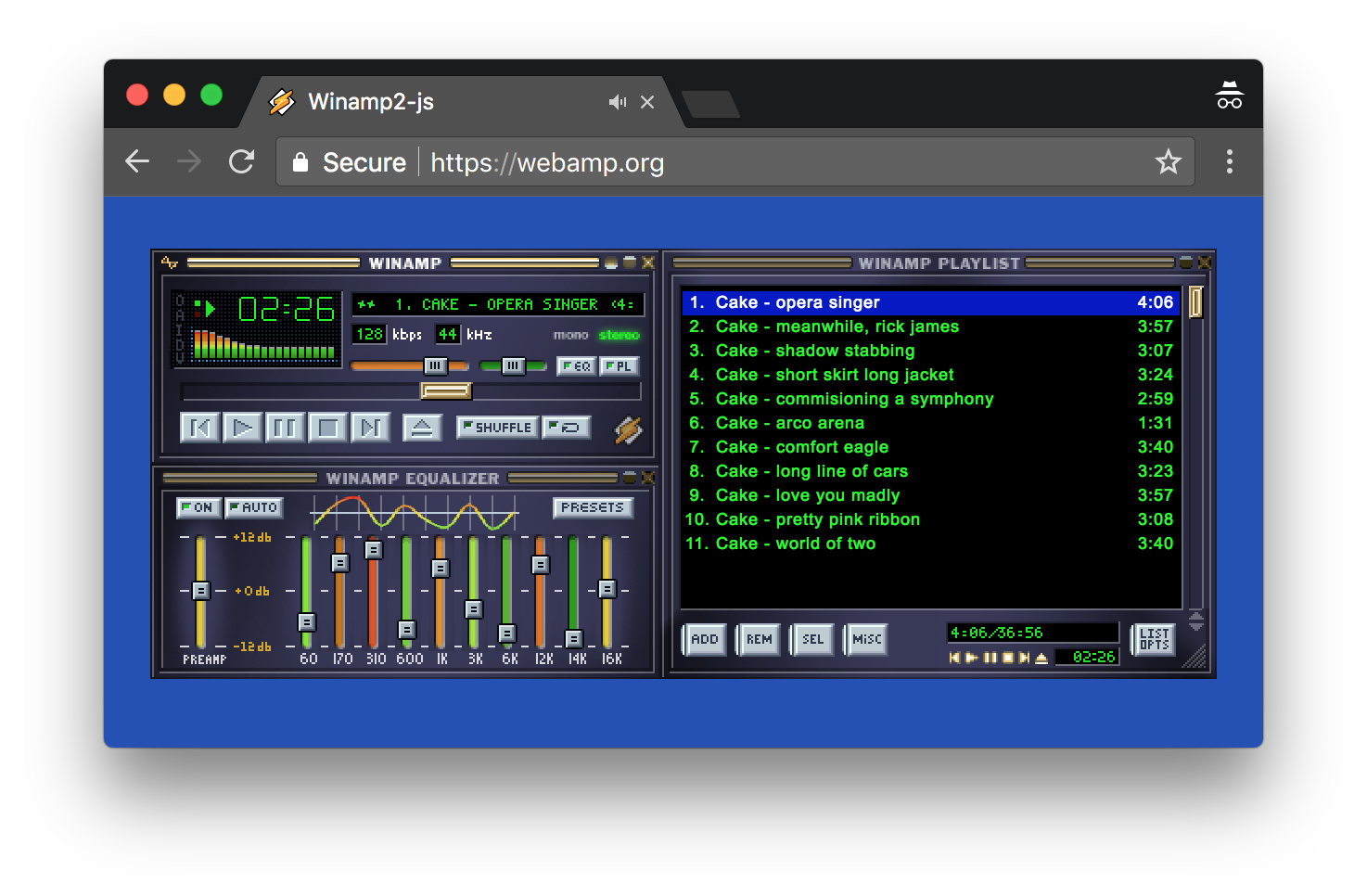
Unzip the skin files
A .wsz is a ZIP file with the skin files directly inside it. Open or unzip Blue Hour with an archive tool. Its folder contains fourteen BMP image sheets saved in RGB mode, which mixes red, green and blue. It also has two text settings files, a readme and a license.
Keep that original beside your working copy. Open geometry.json to see the size and position of each rectangle in this starter. Bamp’s documentation separately explains the classic file format and the images used for normal and pressed controls.
Identify the sheet before drawing
| File | Dimensions | What to edit |
|---|---|---|
main.bmp |
275 × 116 | Main-player background |
titlebar.bmp |
344 × 87 | Title bars and different button states |
eqmain.bmp |
275 × 315 | Equaliser tone controls |
pledit.bmp |
280 × 186 | Playlist borders and controls |
cbuttons.bmp |
136 × 36 | Playback buttons in normal and pressed rows |
The large sheets hold pieces and alternate button images beyond the visible window. Keep the image size and each rectangle’s position fixed. In cbuttons.bmp, compare the playback-button row starting at y=0 with the pressed row starting at y=18. Redraw both so a pressed button still shows what it does.
Change a small palette first
The palette plan records colors for panels, edges, highlights, text, accents and the display background. Choose the display and text colors together so the track name stays easy to read.
Open a BMP in an editor that keeps RGB mode and the exact image size. Change the panel and border before drawing small patterns. After zooming in to work, check the result at normal size. One extra pixel can change a narrow control.
To apply the same color changes across the skin, edit the PALETTES values in the supplied generate.py. Run it with Python and its Pillow image library. It rebuilds the sheets, WSZ files and previews from those values.
Update the playlist colors too
Blue Hour’s pledit.txt has settings named Normal, Current, NormalBG and SelectedBG. The current track’s text color is 58e0d1. Keep the six-character hex color code without a leading #.
Edit viscolor.txt to change the visualizer, the moving display that reacts to the music. Check these text files if playlist text or the visualizer’s bars clash with a newly colored panel.
Zip the files without an extra folder
Select the files inside your working folder and ZIP them. Rename the ZIP so its name ends in .wsz. Open it to check that main.bmp and the other files appear straight away, without another folder around them.
Run the collection’s Webamp preview through a local HTTP server, which serves the files from your computer. Load the skin in a player that supports classic skins. Check play, pause, volume, equaliser sliders, playlist selection and shade modes (the collapsed window views).
If the whole skin fails, check that its files sit directly inside the ZIP. If one control looks wrong, compare its image rectangle with geometry.json. If only text colors look wrong, check pledit.txt.
Give the finished version its own name, creator credit and change note, and keep the included license. The Winamp skin history gives you examples for your next design.