Webamp guide: play local music and load classic skins
Published
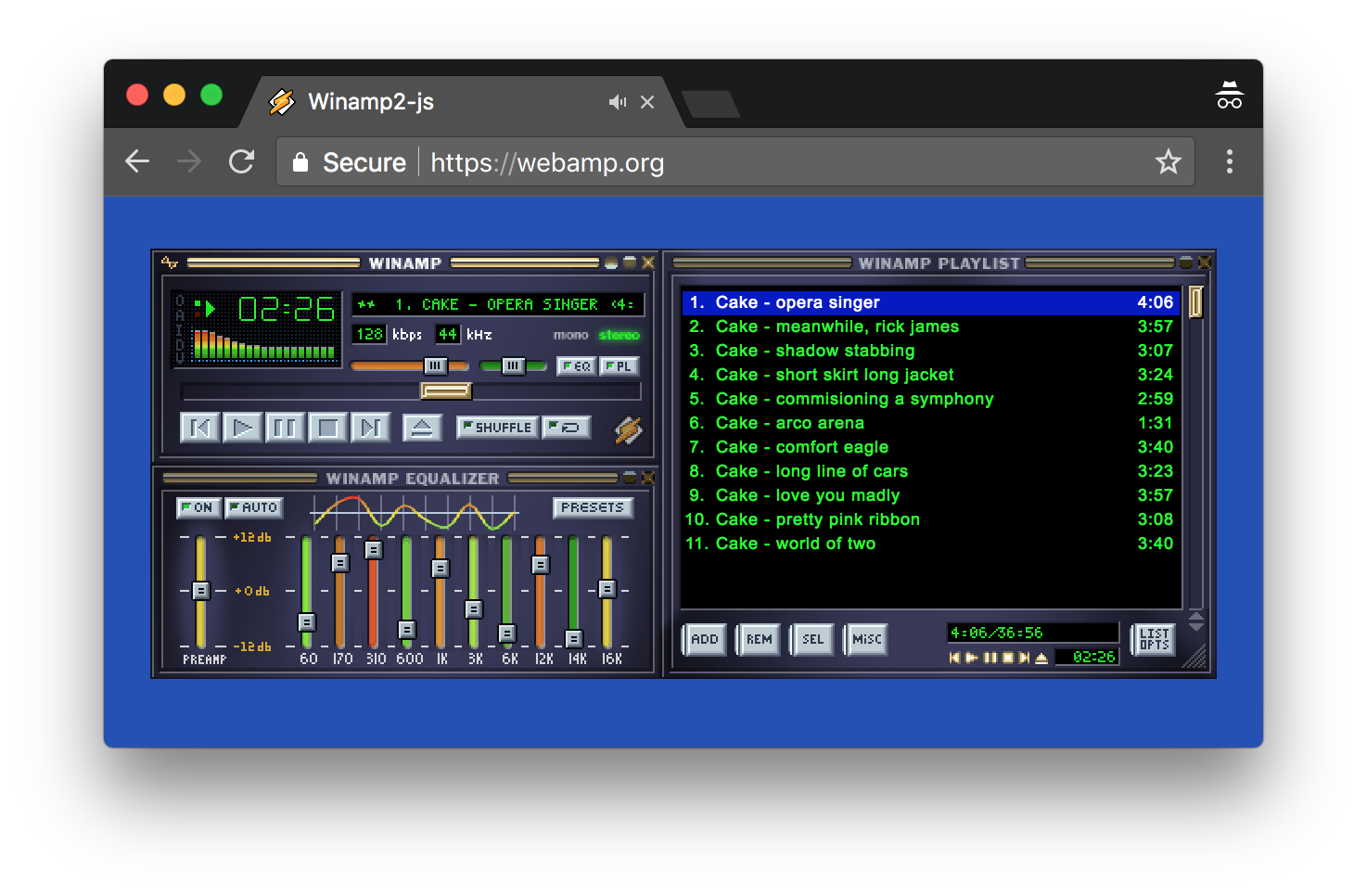
Webamp recreates Winamp 2’s three-window player in a browser. It has playback buttons, an equaliser for adjusting tone and a playlist. Open the listening example and select Play for the original four-second melody. Then add your own audio files.
On this page
Add your local tracks
Wait for the example to show its ready message, then use Your local audio files to select tracks from your computer. The picker accepts several files at once. The page adds them to the playlist; select a track and press Play to begin.
The Webamp Track API lets a webpage pass in an audio file with optional artist and title details. This example uses it to add your chosen files and show their names. It keeps the choices only while the current browser session stays open.
Read the three windows
| Window | Controls to try |
|---|---|
| Main player | Play, Pause, Stop, Previous, Next, progress and volume |
| Equaliser | Sliders for different ranges of low and high tones |
| Playlist | Track selection and listening order |
Keep the player and playlist visible together. Select a different row and check the title before playing it. On a longer track, move the progress slider and watch the time display. Use the example’s Pause audio button to stop the sound while you examine the player.
Try shuffle and repeat after playing the list in its normal order. Check whether they are on if the next track differs from the next row. Keep a written track list if you want to rebuild it after reloading.
For the equaliser, play the same short passage with one slider slightly changed, then put it back. Changing several sliders at once makes each effect harder to hear.
Choose a classic skin
Open the original skin collection and its Webamp preview. Choose Blue Hour, Moss Circuit or Rose Quartz, then press Load palette. Compare the selected playlist row, track display and buttons while pressed in each color set.
Classic skins replace small bitmap images around a fixed layout. If you build a page, Webamp’s constructor documentation explains how to choose its first skin, offer more skins and place the windows. The skin tutorial explains the files behind the artwork.
Run the downloadable example
Download the listening page, unzip it and open a terminal in that folder. Run this command to serve the files from your computer:
python -m http.server 8000Open http://localhost:8000/ in your browser. The HTML page loads Webamp 2.3.1 from unpkg, so the first load needs an internet connection. The original melody is a WAV sound file beside the HTML.
To change the first track’s label, find initialTracks and edit its metaData values. To add a button elsewhere on the page, follow the instance-method documentation. The example’s Pause button calls player.pause().
Separate a setup failure from a track failure
The ready message never appears: check that you opened the page through the local server and that the Webamp code’s URL can load.
The player opens but a selected file fails: play the included melody. That comparison separates a player setup problem from the chosen file.
A remote track URL fails: check the audio host’s CORS settings, which give other sites permission to load its files. The Track API requires this permission. Files you choose from your computer work differently: this example uses their data in the browser without uploading them to an audio-hosting service.
The Winamp skin history follows the artwork people built around those small, familiar controls.