Stylebot vs Stylus: no-code clicks or CSS user styles?
Stylebot and Stylus both change how websites look in your browser, but they work in opposite ways. Here is which to use for what.
Short answer: Stylebot is for changing parts of a page by clicking on them, no code needed. Stylus is for installing or writing CSS user styles. If you want to fix a font or hide a sidebar, start with Stylebot. If you want a complete theme for a site, start with Stylus.
Stylebot vs Stylus at a glance
| Stylebot | Stylus | |
|---|---|---|
| How you change a page | Click an element, then change it from a panel | Install a user style or write CSS |
| Need to know CSS | No, but there is a code editor | To make your own styles, yes |
| Ready-made styles | Limited, you mostly make your own | Large community catalogs |
| Reading mode | Yes, hides sidebars, footers and ads | No |
| Several looks per site | Yes, profiles | Yes, separate styles |
| Sync and history | Sync across computers, version history | Sync and backup options |
| Chrome users | About 200,000 | About 1 million |
| License | MIT, free | GPLv3, free |
What Stylebot is good at
Stylebot turns restyling into pointing and clicking. You select part of a page and change its font, color, spacing or visibility, and the change is saved for your next visit. It also includes a readability mode that strips an article down to the text, profiles for keeping several looks for one site, and version history so you can roll back. You can still write CSS by hand when you need to. Our step-by-step guide shows it in action: customize websites with CSS, DevTools and Stylebot.
What Stylus is good at
Stylus is a manager for user styles: complete CSS themes made for a site, often by its fans. You can search for styles for the site you are on, install them from links, adjust their options and keep them updated. It also has a capable editor for writing your own. If someone has already made the look you want, Stylus gets you there fastest.
Which one should you pick?
- Fix one annoying thing (a tiny font, a pushy sidebar): Stylebot.
- Install a full theme someone else made: Stylus.
- Write precise CSS for a site: either, but Stylus has more tools.
- Make the page fun with a whole new look, art, cursors and sound: neither. See below.
Want a whole new experience instead?
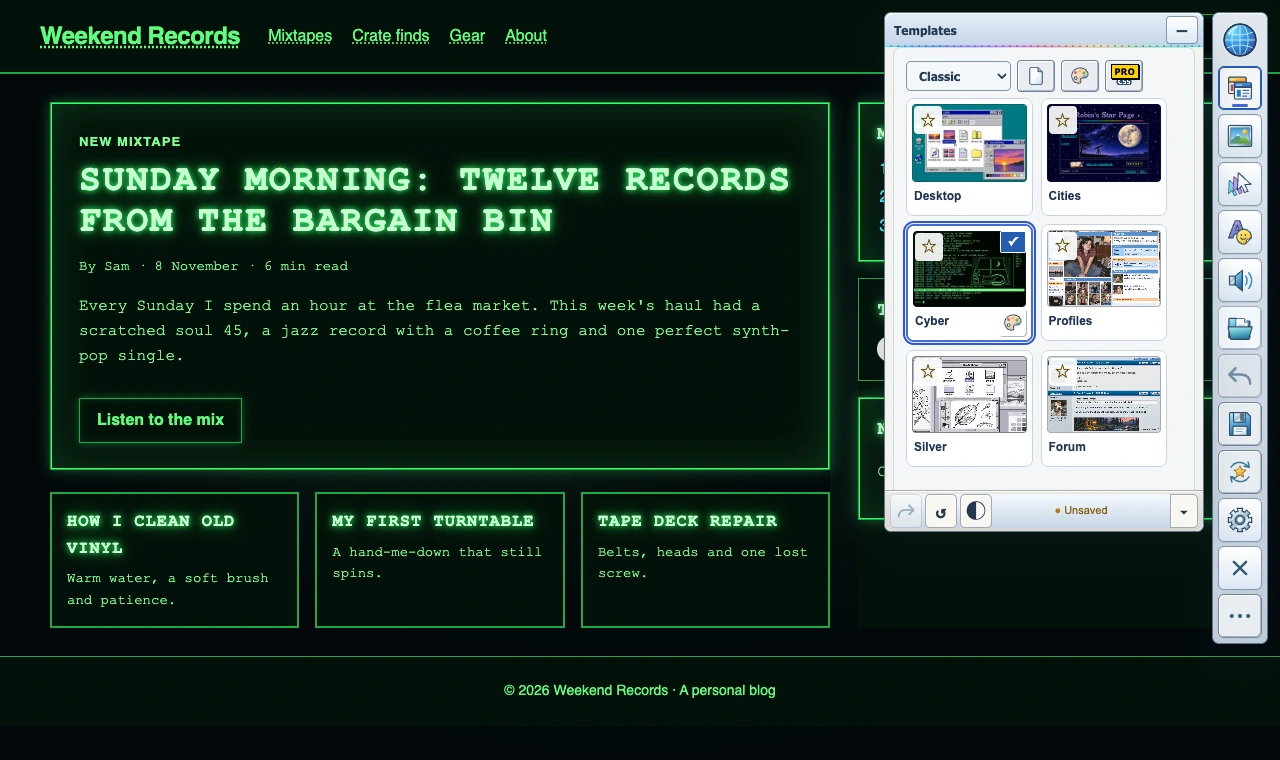
Stylebot and Stylus both edit a page’s styles. Back to the 90s changes how the page feels to use. Choose a 90s or Y2K look, and then decorate the actual page: place GIFs and artwork, set a background, add your own text, and switch on custom cursors, mouse trails, click bursts and sounds. It needs no code, and it is built for nostalgia, fun and streaming setups rather than precise fixes.
Worked example: make small text bigger
In Stylebot: open Stylebot on the page, click the paragraph that is too small, and raise the font size in the panel. The change saves itself, and the next visit loads it automatically. No CSS is needed.
In Stylus: first search for an existing style for the site that already does this. If there is none, create a new style for the site and write a rule that sets a larger font size for the article text, then save. It takes longer the first time, but you get exact control over which pages and which parts change.
Permissions and speed
Both extensions need permission to read and change the sites you visit, because that is the only way any extension can restyle a page. Both are open source, so their code can be checked. Both add little overhead for a handful of small changes. A very large user style, or many styles running on one page, can slow heavy sites in either tool; turn styles off for a site if pages feel slower.
Beyond Stylebot and Stylus
If neither fits, see our full list of 10 Stylus alternatives, including Dark Reader for dark mode, Midnight Lizard for color schemes, and Tampermonkey for scripts. For a side-by-side of the two classic user style managers, read Stylish vs Stylus.
Questions
Can I use Stylebot and Stylus together?
Yes, but if both change the same element, the results can clash. Turn one off for that site if something looks wrong.
Is Stylebot on Firefox?
Yes. Stylebot is available for both Chrome and Firefox.
Does either change the site for other people?
No. Both only change what you see in your own browser.