Customize websites with CSS, DevTools and Stylebot
Published
You can change a website’s fonts, colors and spacing for your own visits. Use your browser’s DevTools editing panel to try CSS styling rules, then save them with the Stylebot extension for your next visit. A browser theme changes the tabs, toolbar and New Tab page.
On this page
Start with one problem. For a wide article, narrow the text column. For cramped paragraphs, increase line spacing. Those changes need only a few lines of CSS.
Try a rule in DevTools
Open our local reading exercise. Right-click a paragraph and choose Inspect. In Chrome’s Elements list of page parts, select the article that contains the paragraph, then find Styles. Google’s DevTools walkthrough shows how the selected part connects to the rules in this panel.
Add these lines to element.style, pressing Enter after each one:
max-width: 65ch;
margin-inline: auto;
line-height: 1.75;
The first limits the column, the second centers it and the third opens the line spacing. ch uses the width of the font’s zero character; 65ch is a starting width, not a count of 65 letters on every line. Reload the exercise to discard these temporary edits.
To change the page background, select body and try background: #fff7e8; color: #172b3a;. If the article has its own solid background, select that block and apply the same pair. Set text and background together so the words stay easy to read.
You can also download its complete reading stylesheet. It includes colors, underlined links and a highlight around controls selected with the keyboard. Use it to see how the text rules fit into a complete page.
Save the style in Stylebot
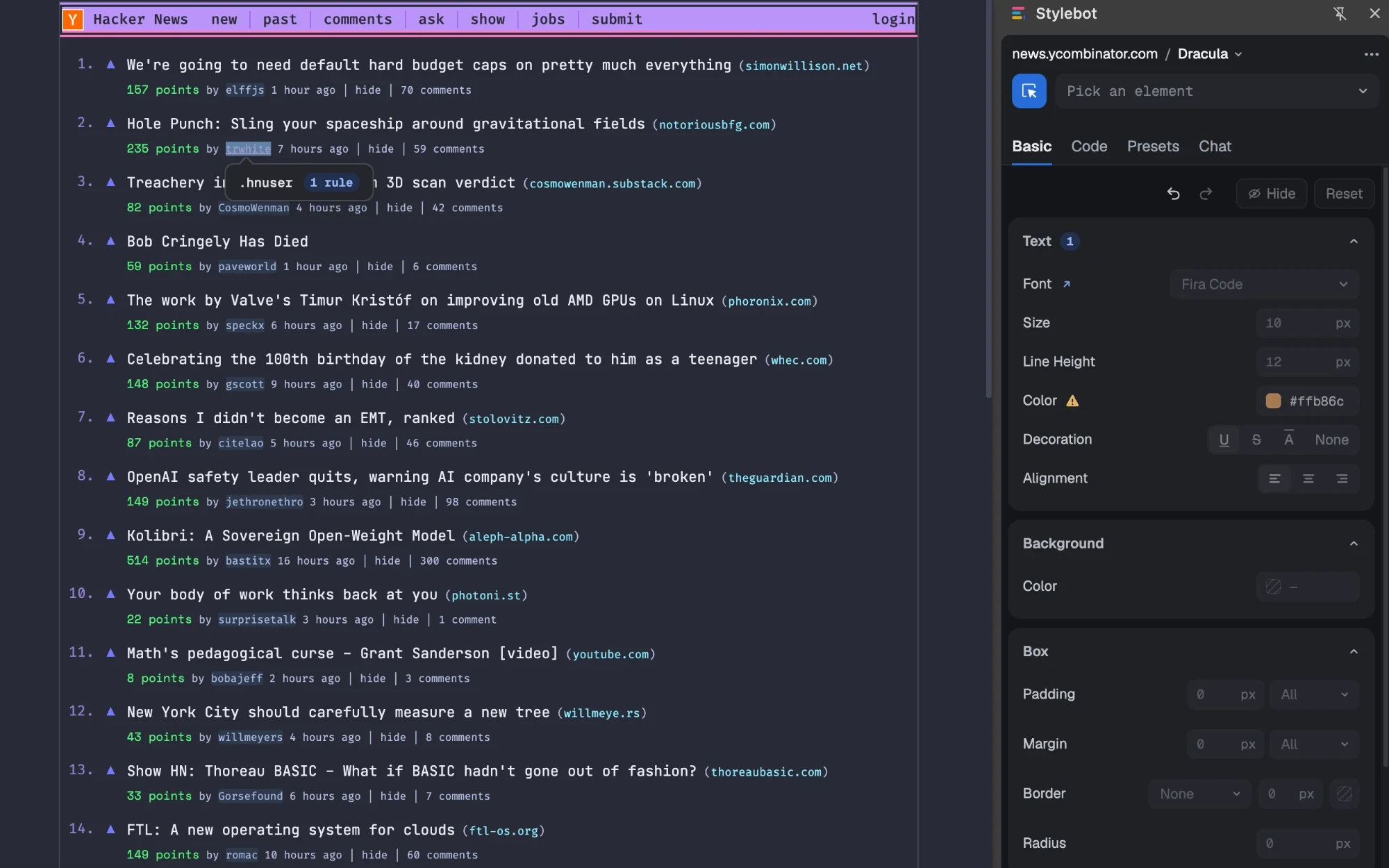
Stylebot supplies a picker and CSS editor for desktop browsers. Its manual documents this sequence:
- Open the extension’s toolbar icon and choose Style this page, or press Alt+Shift+M.
- Activate the picker and point at the article. Press ↑ to move from a paragraph to the larger block that contains it before selecting it.
- Choose Code and add a rule for that block. For the exercise, use
article { max-width: 65ch; margin-inline: auto; line-height: 1.75; }. - Reload the page. Stylebot saves edits as you make them and reapplies the saved rule.
On another website, inspect the block that holds its article. A CSS selector names the part you want to change: article works only when the site uses that element for its content. Choose that block carefully to avoid shrinking menus or dialogue boxes too.
Limit where the CSS applies
Stylebot normally applies a style to a domain—the site name—and its subdomains, which add a prefix to that name. In Options, edit the style’s URL pattern to limit the pages it affects. For example, example.com/articles/** covers pages below that path. A bare * covers every site, so name the site or path you want to change.
Save different looks in named profiles, such as “Large text” and “Evening reading”. The popup lets you switch profiles or choose No style. Alt+Shift+S turns styling on or off without deleting the saved CSS. Options also lets you save a backup as a JSON file and view older versions.
Diagnose the part that did not change
| What you want to change | Where to change it |
|---|---|
| Article font, column width or paragraph spacing | The page’s CSS in DevTools or Stylebot |
| Chrome tabs or New Tab background | Chrome appearance controls |
| Firefox tabs and toolbar | Firefox themes or Firefox Color |
If a saved style stops working after a site redesign, pick the page part again and check whether its selector has changed. If a CSS line appears crossed out in DevTools, check which rule takes priority before adding more CSS.
After editing, read a full paragraph, follow a link and press Tab through nearby controls. If the new width cuts off a table or menu, apply the rule only to the article text. Turn the style off and on once more to check whether it solves your starting problem.