Firefox themes: install, customize and restore a theme
Published
Firefox themes change the tabs and toolbar around the page. Choose a ready-made design through the Add-ons Manager, or use Firefox Color to choose your own colors and background.
On this page
Mozilla’s theme guide lists the built-in System, Light, Dark and Alpenglow choices. Try one of those first to see how much of the browser a supported theme changes.
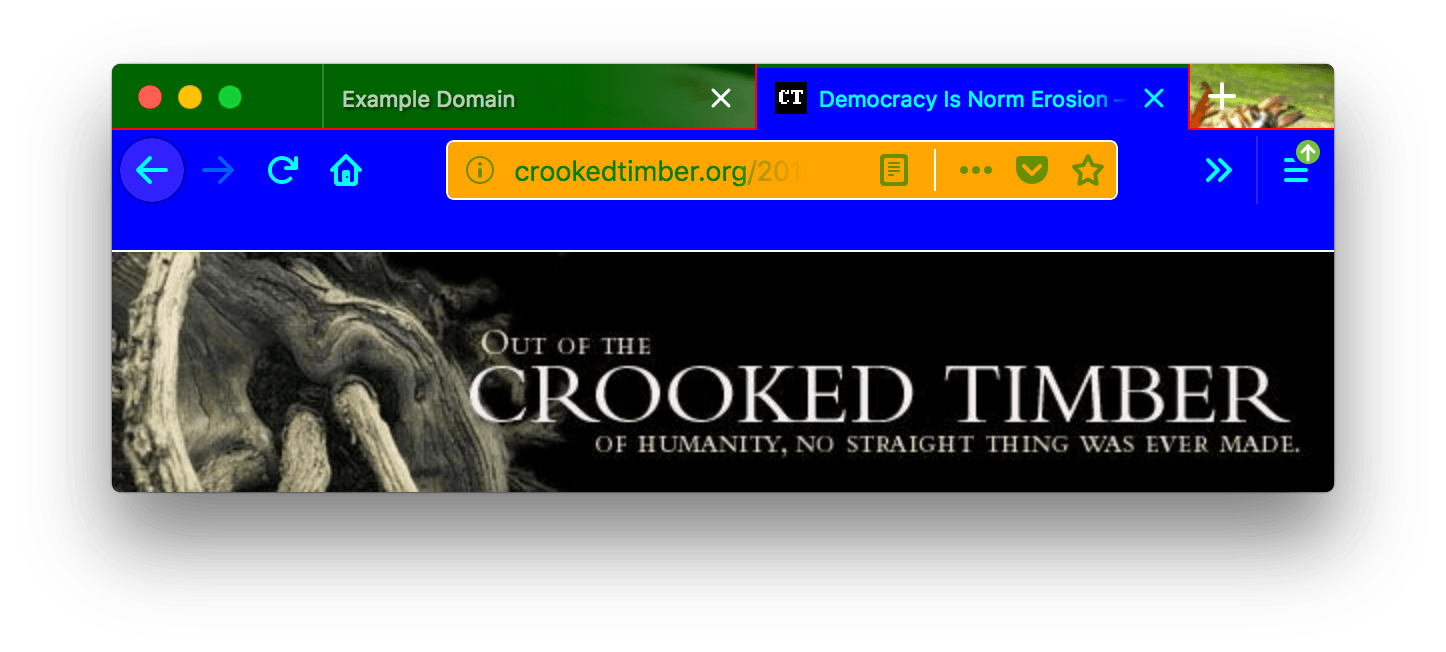
Install a theme from Mozilla Add-ons
- Open Firefox’s menu and choose Extensions and Themes → Themes.
- Browse the suggestions or open Mozilla’s theme gallery.
- Read the creator’s listing and preview, then select Install Theme.
- Return to Themes whenever you want to enable another saved design.
Keep the listing URL in the theme notebook. A saved name and creator are more useful than a screenshot when you want to find a theme again.
You can also find themes in the New Tab page’s Appearance settings. The Add-ons Manager lists all your installed themes in one place.
Check the crop where you use it
A small theme preview cannot show a busy browser. Open several tabs, including two with similar titles, and narrow the window. Check that you can spot the selected tab, read the address box and see the toolbar icons.
Narrowing the window can crop different parts of the artwork. Keep faces, lettering and other key details away from the tab labels. A plain strip behind the controls can make a decorative background much easier to use.
Make a palette with Firefox Color
Open Mozilla’s Firefox Color tool and start from a ready-made color set. Change the toolbar background and text first, then the surrounding frame. Once those controls are easy to read, add a background image.
The Library Teal palette supplies four original hex color codes. Use its dark ink for text, pale color for the toolbar and deeper color around the frame. Copy each code into the matching color box. Keep the JSON file as a color record for a matching wallpaper.
Why a dark theme can leave a page bright
Mozilla keeps Website appearance separate from the browser theme. That setting asks sites to use light colors, dark colors or your system’s choice where they support it. A site can still choose its own colors and layout.
To change an article’s font, line spacing or column width, follow the personal stylesheet walkthrough. A stylesheet is a set of page-styling rules. It changes the content inside the browser frame, which Firefox Color styles separately.
Switch, disable or remove a theme
In Extensions and Themes → Themes, choose Enable for the design you want. Disable an added theme to return to the default System theme. To remove a saved design, open its three-dot menu and choose Remove.
Add one useful observation to the notebook, such as “active tab remains clear in a narrow window”, to guide your next choice.