Old web browser emulators: a guide to OldWeb.today
Published
OldWeb.today runs older browsers inside a modern browser and lets them load live or archived pages. Choose the browser, enter the original web address (URL), and use Browse Archives At to ask for a saved page from the past. The project documentation explains those separate browser and archive settings.
On this page
Choose the experience you want to study
Three related activities answer different questions:
| Activity | What you explore | A useful starting point |
|---|---|---|
| View a saved page | An older copy of a website | The old-website search guide |
| Run an old browser | A page opened in old browser software | OldWeb.today |
| Run an old computer | The computer and its software as a whole | PCjs |
PCjs recreates selected old computers and software inside a modern browser. Use it to study a computer as a whole. OldWeb.today is more focused on trying web pages in old browsers.
Try Netscape 3 with a GeoCities page
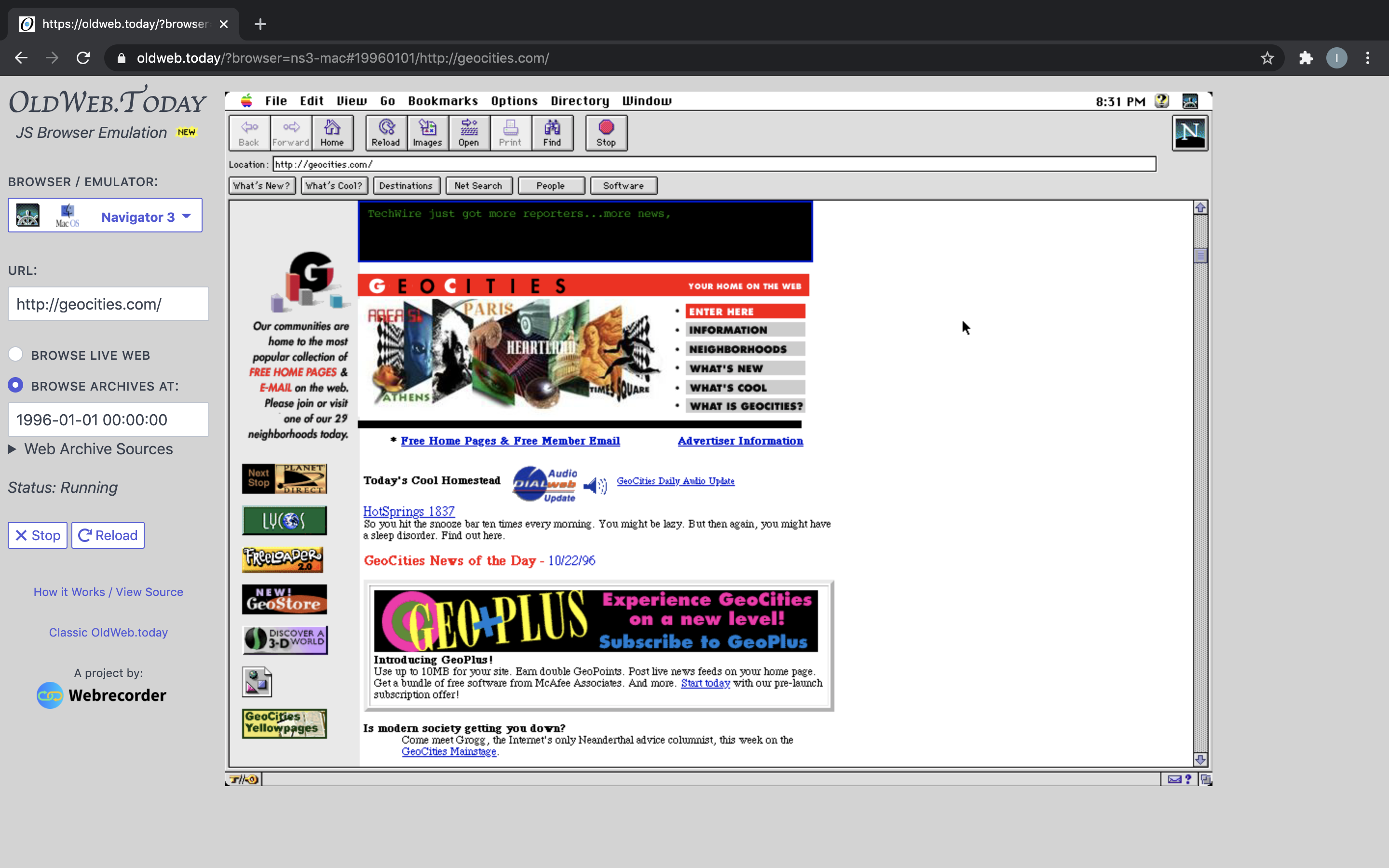
The OldWeb.today project links a Netscape 3 for Mac example with a GeoCities archive request. The link requests the date 1 January 1996.
Open the example and check the browser name, web address and date in the controls. Write down both the date you asked for and the date of the copy that opens. They may differ.
Wait for the old browser to start. Read the opening page or follow one clearly labeled link. Notice which buttons belong to the browser and which links belong to the page.
Enter a web address and date
- Open OldWeb.today and choose a browser under Browser / Emulator.
- Enter the original address in URL—for example,
http://geocities.com/. - Select Browse Archives At rather than Browse Live Web.
- Enter the requested date and time in the shown
YYYY-MM-DD hh:mm:ssformat, such as1996-01-01 00:00:00. - Let the old browser load, then compare the saved page’s date with the date you requested.
For the second view, change only the browser. Keep the address and date fixed. Compare where lines of text break, which controls appear and how images look.
Check a missing page or image
| Result | Next check |
|---|---|
| Browser opens but the page is missing | Search the original address in the Wayback Machine and choose a date with a copy that opens. |
| Text loads but an image is absent | Look up that image’s own original address; the page and image are separate saved files. |
| Page asks for Flash or Java | Choose a browser with Flash or Java shown beside it in OldWeb.today’s list. |
| Modern page appears in an old browser | Switch from the live-web setting to the archive-date setting. |
Record the browser version, operating system (the software that runs the computer), requested date and actual saved date in the comparison worksheet so you can repeat the working combination.
Add Flash or Java when the page calls for them
Ilya Kreymer’s 2020 introduction to the browser-based OldWeb.today explains the project’s use of Basilisk II, v86 and Ruffle. The current project files list the old browsers and which ones support Flash or Java.
Choose a browser that can run the page you want to see. A page of words and pictures may need less than a game that uses Flash or Java. Those are extra programs that can run games and animations. Check the project’s browser list for what each option supports.
For games, try preserved Flash games. For a design case study, 2Advanced gives you a historical Flash work and a creator-led modern reconstruction to compare.
Choose another page to explore
The Netscape history gives the software context, while CERN’s project page shows how early pages used linked text.
The 90s internet hub supplies dated sites and browser histories for another visit.