Retro Android themes: Pixel wallpaper, colors and icons
Published
Build a Windows 95/98-style Android home screen with a teal background, pale gray objects and short app labels. Google Pixel’s built-in settings change the wallpaper, colors, grid and supported icon styles. To use the supplied PNG images as individual app icons, you need a launcher—the app that manages your home screen—that supports this.
On this page
This guide uses Pixel’s current controls. Other Android makers arrange their home-screen settings differently, so use their equivalent wallpaper and launcher options.
Prepare the artwork
The Android theme pack contains a 1440 × 3120 wallpaper, six square icon illustrations and a layout worksheet. Open the ZIP file and save the wallpaper to your image library.
The small gray window picture sits near the bottom of the wallpaper. Keep it below app labels when adjusting the crop. Take a screenshot of your existing home screen to record your usual app positions.
Apply the Pixel wallpaper and palette
Google’s wallpaper guide documents these controls:
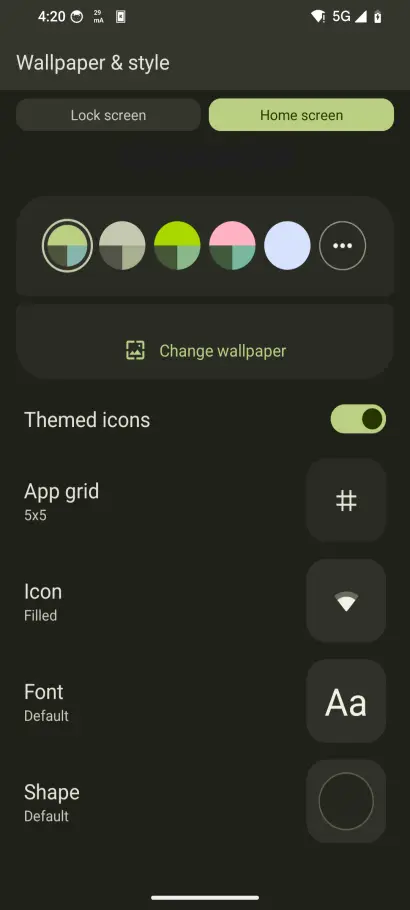
- Touch and hold an empty home-screen area and open Wallpaper & style.
- Open Change wallpaper → Choose a photo. If the panel first offers More wallpapers, open that chooser.
- Select the supplied image, choose the home or lock screen as offered, then use Preview → Apply.
- Return to Wallpaper & style → Colors. Choose colors taken from the wallpaper or Other colors, then apply them.
Inspect the clock and status icons in the preview. The background should leave those shapes readable without moving them into the illustrated window.
Choose the icon layout and style
In Wallpaper & style → Layout, choose the home-screen grid and select Apply. A larger gap between icons gives a desktop-like layout more space; a denser grid fits more apps on one page.
Pixel separates icon Style from Shape under Wallpaper & style → Icons. Google notes that this styling applies to the home screen and folders while the all-apps list retains its normal icons.
The downloaded PNGs are image files. Choose a launcher whose instructions say it supports custom image icons. Try one image before arranging the whole page, and check that tapping it opens the right app. Keep the launcher’s instructions for restoring your previous home-screen app.
Arrange six familiar apps
Start with communication, camera, browser and the other apps you open most often. Keep their positions stable while replacing images. An envelope can identify your mail app; the label supplies its exact name.
Put occasional apps in a folder or the app drawer, the list of all your apps. Use one widget for a task such as showing the next calendar event, and keep the decorative panel clear of its text. The layout worksheet records positions and which apps the icons open so you can rebuild the page.
Make additional artwork
For another wallpaper color, keep the grid only slightly lighter than the background. For new icons, use a single object, a matching dark outline and the same empty margin as the supplied set. Check each saved image at home-screen size before adding detail.
Unlock the phone, open each changed icon and search for an app by name. Save a finished screenshot with the artwork. Use the classic Windows palette or iPhone Shortcuts guide for a matching second device.