Retro iPhone theme: custom icons with Apple Shortcuts
Published
Give an iPhone a Windows 95-style home screen with teal wallpaper and custom app launchers made in Shortcuts. A launcher is a home-screen icon that opens the app you choose. You can give it your own image, and the app remains available in the App Library.
On this page
The iPhone theme pack contains a wallpaper and six original 512 × 512 illustrations for Notes, Photos, Music, Files, Mail and the web. Connect them to whichever apps you use for those tasks.
Prepare the wallpaper and images
Open the pack in Files. Keep the icons there for Choose File, or save them to Photos for Choose Photo. Set the wallpaper through your iPhone’s wallpaper settings. Check how your phone crops it on both the lock screen and home screen.
Start with six apps. Keep their usual positions so you can judge the new artwork without relearning the whole layout. The pack’s layout.csv records each icon’s position and the app it opens.
Try built-in icon styling first
Touch and hold the home-screen background, then choose Edit → Customize. Apple’s home-screen guide explains dark, tinted and clear icons as well as icon size. Large icons hide app names. Keep the smaller size if labels help you recognize the new set.
A tint coordinates existing app icons quickly. Use the following Shortcuts route when you want the supplied illustrations instead.
Make the first custom launcher
- Open Shortcuts, create a shortcut and add Open App.
- In that action, select the app you want to open and give the shortcut a name you will recognize.
- Run it from the editor. Check that it opens the right app before adding the icon.
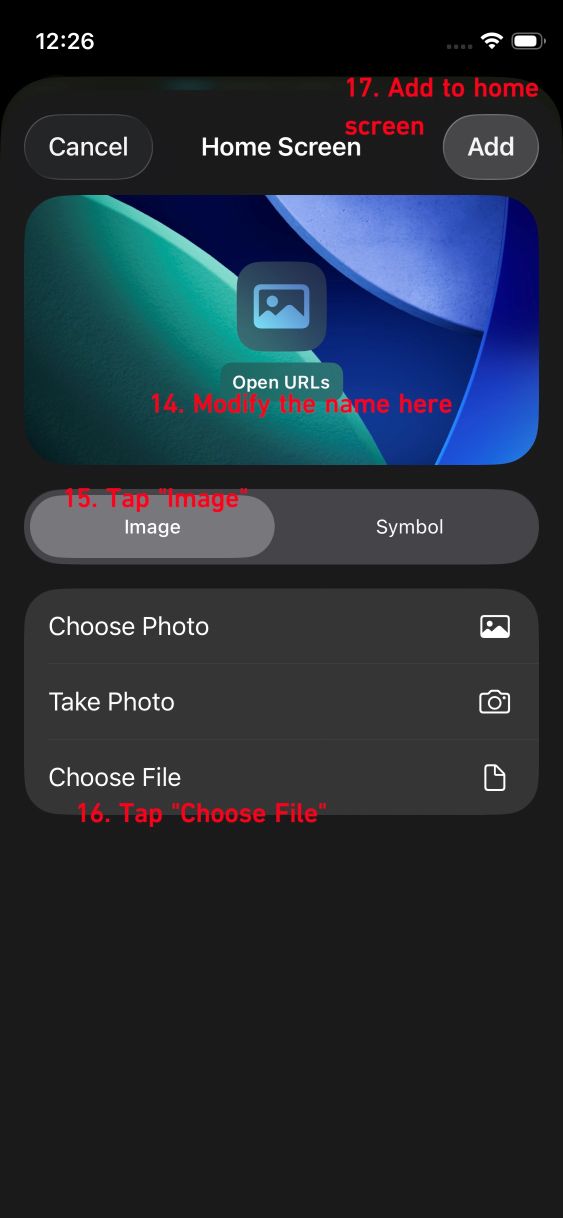
- Open the shortcut’s Details → Add to Home Screen.
- In Home Screen Name and Icon, tap the icon and choose Choose Photo or Choose File. Select the matching PNG image.
- Enter the home-screen label and tap Add.
Apple’s shortcut creation guide explains how to add actions and run a shortcut. Its home-screen instructions cover the image, label and final Add button.
Tap the new launcher on the home screen. Once it opens the right app, place it in the intended position and repeat for the other five.
Copy a shortcut and check which app it opens
Making a copy of a working shortcut saves time, but it also copies the Open App action. Check these three settings for every copy:
| Field | What it controls |
|---|---|
| App selected in Open App | Which app launches |
| Shortcut name | How you identify it inside Shortcuts |
| Home Screen Name and Icon | The displayed launcher label and image |
If the icon looks right but opens the wrong app, edit Open App and run the shortcut again. If the action works but the home-screen label or image is wrong, remove that launcher and add it again with the corrected details.
Extend the set
Draw each new icon on a square canvas with one pale background, a dark outline and an object you can recognize. Keep the margins and outline thickness the same. A large envelope or folder stays clear at small sizes better than fine lettering.
Keep the finished screenshot, artwork and layout file together so later changes remain straightforward. The Android theme guide uses the same palette for another device.