Windows screensavers: set up 3D Text or Photos
Published
Windows still has screen-saver settings for animations such as 3D Text and Photos. Choose a built-in saver and preview it. Set it to start before display sleep, when the screen turns off, if you want to see it during a break.
On this page
Use the supplied geometric pictures with Photos for an abstract retro display. Choose 3D Text for a rotating word or greeting.
Open the control panel
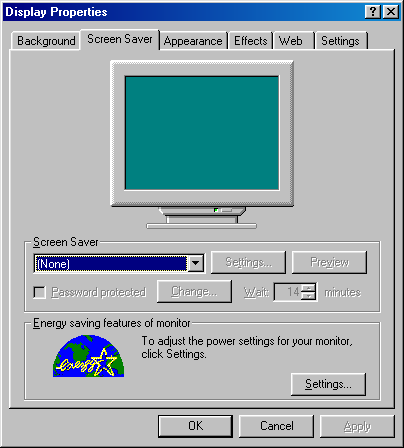
Go to Settings → Personalization → Lock screen → Screen saver under Related settings. Choose a saver from the dropdown, select Settings for its options and use Preview to see it full-screen. Microsoft documents this route in its screen-saver guide.
Keep your original choices in the settings record. It has separate rows for the saver, image folder, wait time, screen sleep and sign-in settings.
Configure 3D Text
Choose 3D Text, open Settings and enter a short phrase. Initials or a brief greeting leave the letters room to turn; a full sentence makes them more crowded.
Choose a solid color first, then adjust the available motion and surface settings. Preview after each change. Watch the full rotation to check whether letters become awkwardly narrow or disappear into the background.
Microsoft’s OpenGL graphics team created 3D Text for a Windows NT screensaver competition.
Use the geometric Photos pack
Download the original screen-saver plates and unzip them into a lasting folder in Pictures. The pack contains three 1920 × 1080 PNG images in teal, pink and gold.
Choose Photos → Settings, select the unzipped image folder and preview the sequence. Adjust the available speed and order settings to suit the pictures.
To add your own image, use the same wide shape and keep key objects away from the edges. Preview the sequence on the screen that will show it. A different screen shape can crop the pictures differently.
Set the three timings deliberately
The saver wait, screen sleep and sign-in settings affect different stages of a break. For example, start the saver after five minutes and let the screen sleep after ten. If sleep starts after three minutes, the screen goes dark before the five-minute saver can appear.
Select On resume, display logon screen to require sign-in when you return. Microsoft recommends screen sleep to save energy; the saver shows its animation before the screen turns off.
Use a short wait to check the setup, then restore your everyday timing. If the screen goes straight to black, compare its sleep time with the saver wait before changing the image folder.
For Pipes, mazes and other historical patterns, explore the 90s screensaver history. The classic Windows theme guide uses the same palette around your working desktop.