Play 90s computer games: downloads, editions and emulators
Published
Play a free adventure through ScummVM, open a historical machine with PCjs, browse DOSGames.com for shareware, or choose a maintained commercial edition from a store or publisher. The route determines both the files you need and the software that runs them.
On this page
The collections below serve different jobs. Download the session notebook to record the title, edition, controls and save method you choose. That small record helps when several releases share almost the same name.
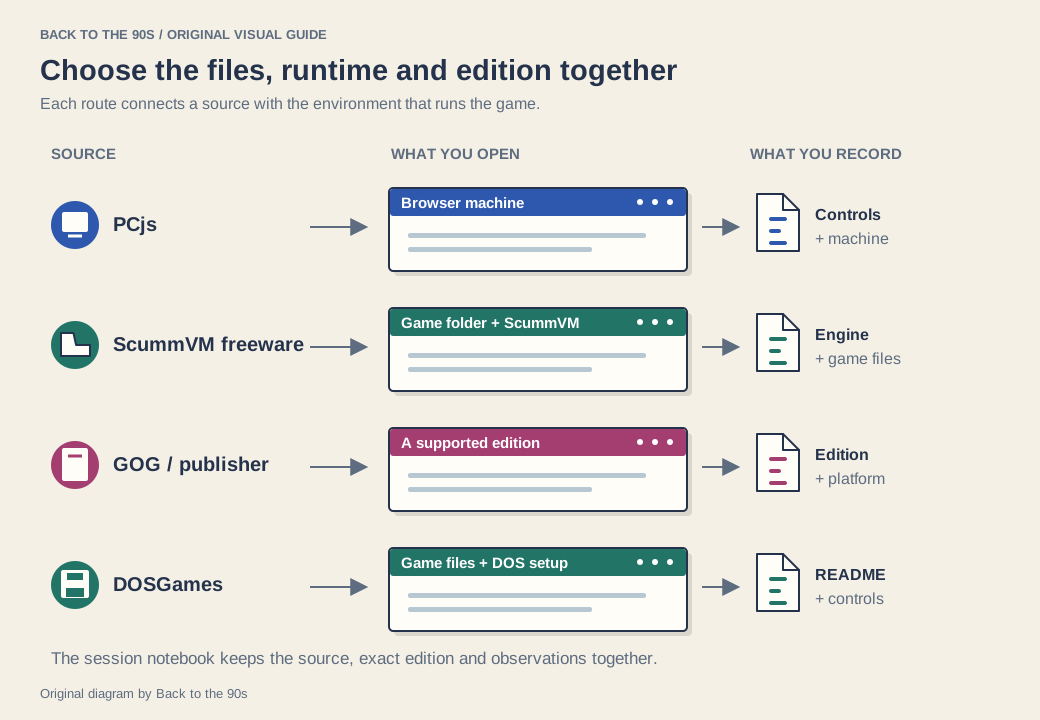
Keep a source, runtime and edition together.
Choose a route
| Route | Best starting point | What you get |
|---|---|---|
| ScummVM freeware collection | A complete point-and-click adventure | Game data plus a separate interpreter |
| GOG Preservation Program | A maintained commercial classic | A purchased edition with program support |
| DOSGames.com | A small shareware or freeware discovery | A labeled catalog entry and its run/download route |
| PCjs | The feel of an old machine | Browser emulation, software and documentation |
| A current publisher edition | A familiar game with current features | A release such as Age of Empires II: Definitive Edition |
ScummVM: begin with the freeware games page
ScummVM’s game downloads provide clearly labeled freeware editions of games including Beneath a Steel Sky, Flight of the Amazon Queen and Lure of the Temptress. Entries distinguish versions and languages, so choose the one you want before downloading.
ScummVM runs supported game data through its own game-engine implementations. Follow the official add-and-play guide:
- Install the build for your system from the official downloads page.
- Extract the chosen game download into its own folder.
- Open ScummVM and choose Add Game.
- Select the folder containing the game data, then choose Choose. Select the matching edition if ScummVM offers several.
- Review the detected game, add it to the launcher, select it and choose Start.
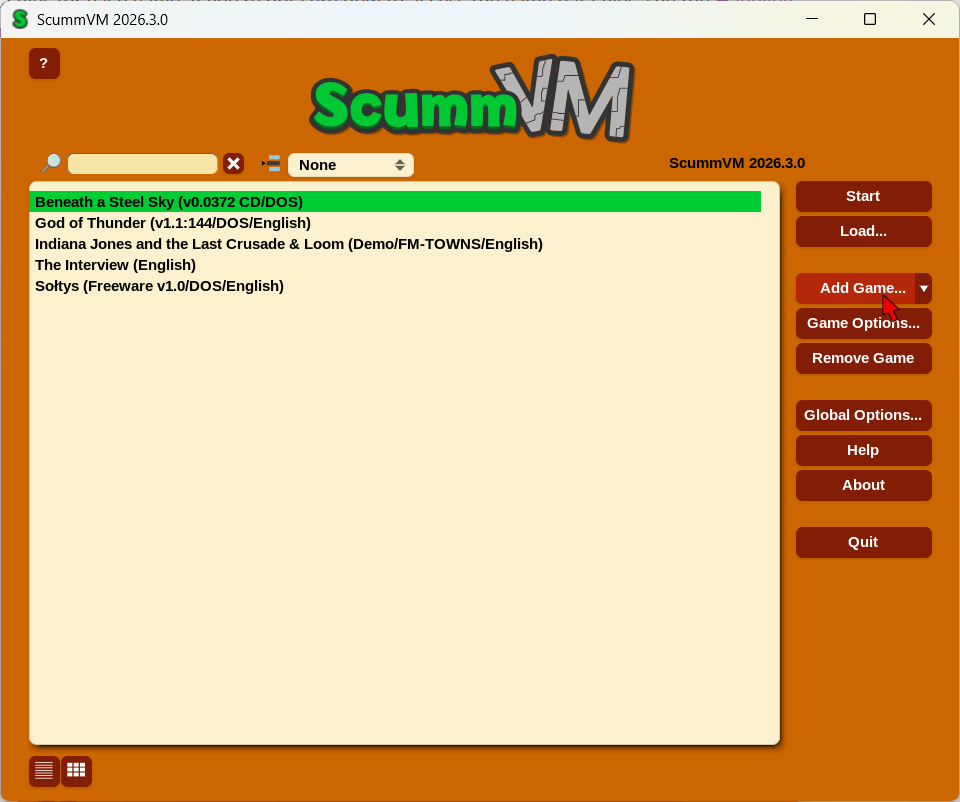
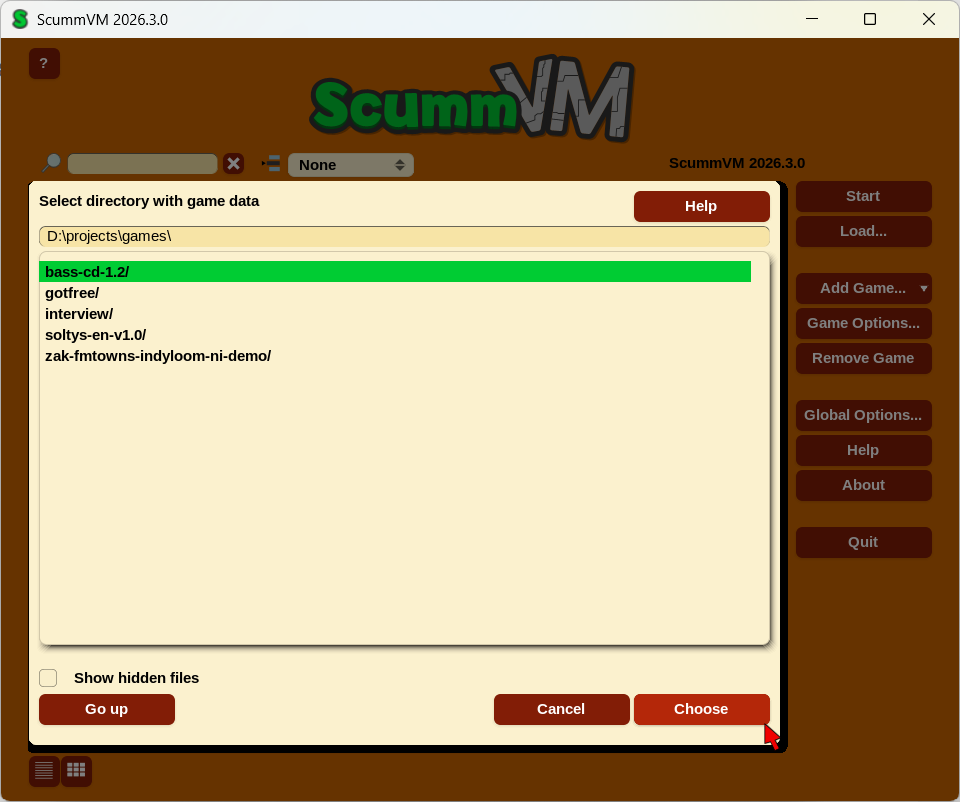
For a first game, choose Beneath a Steel Sky from the freeware page and keep its CD/floppy and language labels with the folder name. Once it starts, open the save controls and make an early save before continuing.
GOG: choose a maintained commercial edition
The GOG Preservation Program identifies games that GOG commits to maintaining for modern systems. Its catalog and individual product pages provide the route to a particular game and its system requirements. Check the supported operating system on the edition you intend to use.
Use the program label as a starting point, then read the individual listing. Check the edition name, included expansions, languages and controls. A remembered title can have an original release, an enhanced version and a remaster beside it; those names describe meaningful choices.
Choose the store edition when its included game, expansions and supported system match what you want to play. Keep the installer and included manual together for the next session.
DOSGames.com: explore the shareware shelf
DOSGames.com organises free DOS software into categories such as action, adventure, puzzles, educational games and game-creation systems. Founder Darren Hewer describes the catalog around shareware, freeware and public-domain distribution.
Read the type shown on a game’s own entry. A shareware release can give you an introductory episode or a portion of a larger game; freeware describes a different distribution arrangement. That label helps set your expectation before you start.
For a short visit, choose a puzzle or arcade category and read the control notes first. For a longer project, follow the site’s DOSBox guide and keep the game folder alongside any included documentation. The archive’s author lists and scanned materials can also lead you from one game to its wider context.
PCjs: put the machine in the picture
PCjs emulates historical computers and related hardware in the browser. Its home page highlights public-domain and shareware collections alongside individual machine exhibits and documentation.
Choose this route when the surrounding computer matters as much as the game. A boot sequence, a low-resolution display and a text command can help explain the rhythm of using older software. Start with one of the highlighted collections or use the Explorer to choose a machine.
Give the emulator keyboard focus before entering commands. Read the page’s instructions and record how it handles disks and saved work. Our old-browser and computer-emulation guide introduces related ways to explore historical environments.
Follow the publisher for a current edition
Age of Empires II: Definitive Edition offers a current route back into the series through the publisher’s game information, learning materials, platform links and ongoing updates.
The publisher describes remastered 4K graphics and remastered audio for Definitive Edition. Those changes make it a current version of a familiar game rather than a reproduction of the original display and sound. Choose it when you want that updated presentation and the edition’s current features. Read its feature and platform pages as part of the choice. If your strongest memory concerns a particular campaign or interface, note that detail before comparing editions.
Set up a satisfying first session
Choose one title and one route. Find the controls, open the help or manual, and make a small save early. Then give yourself a concrete goal: finish the first puzzle, complete the tutorial or explore the opening area.
For memories of classroom computers, continue with 90s educational games. For games remembered from a browser portal, use the Flash archive guide and the old Flash game search worksheet.