Webkinz returning player guide: Classic, Next and accounts
Published
Choose Webkinz Classic to revisit the original game, which began on 29 April 2005. Webkinz Next is a separate newer game. Ganz’s official FAQ explains the distinction and the current ways to play.
On this page
If you want your old pets and rooms, start with account recovery before creating a new account or trying an adoption code.
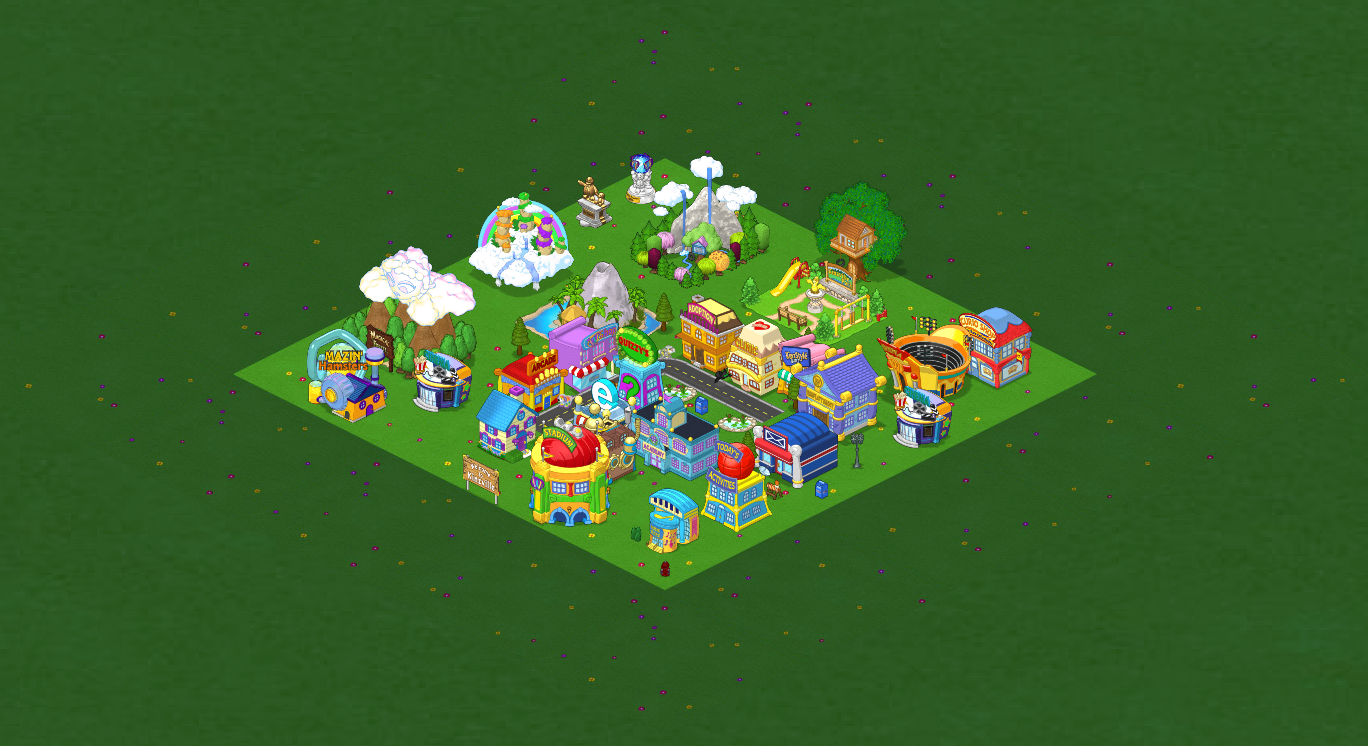
Find the Classic app
Open Webkinz’s official site and choose the download labeled Classic for Windows or macOS. The desktop app gives you the full Classic game; the mobile app has fewer features.
Check the game name while downloading and signing in, even where Ganz links Classic and Next.
Recover an existing account
Ganz’s account-recovery report lists details support can use, such as the exact username, linked email or registered adoption code. Gather the details you still have and follow the official support steps.
Ganz’s user agreement allows it to delete accounts after two years without use. It allows deletion after six months without use if the account has never had paid pets or Deluxe Membership. Its FAQ lists longer periods. Ask support whether your account still exists. Ganz cannot restore a deleted account.
An adoption code works once. A code from a pet on a deleted account cannot adopt it again on a new one. Keep old tags with your account records: they may help identify an existing account, but you cannot use them for a second adoption.
Start a fresh account or add a pet
For a new Classic account, open the app and select Play → I’m New. For an existing account, select Play → Log In.
To add a pet to your existing account, sign in first and visit the Adoption Center. Check the account before entering the code; this is where the pet will join you.
Find an activity without touring every menu
Open Things to Do → Today’s Activities to see the scheduled activities and bonuses. Choose one available activity, read its instructions and try it before adding another goal.
For a return focused on your room, check what you own before shopping. Pick one change—move the bed, clear a path or arrange a reading corner—and finish it.
The pet-visit and room notebooks keep the pet, activity, room goal and next step together. Label your notes Classic or Next so you know which game each detail belongs to.
What if an old feature is missing?
Look up the feature by its own name. Mazin’ Hamsters, for example, used an early Unity Web Player version. Our Unity Web Player guide follows Ganz’s explanation of why the Classic desktop app could not run it.