Cursor trails: add one to Windows or your website
Published
A cursor trail marks the pointer’s recent path. Windows can draw one across the desktop; a webpage can draw decorative marks inside a chosen area. Choose the desktop setting to make the pointer easier to see, or use the downloadable example on a personal site.
On this page
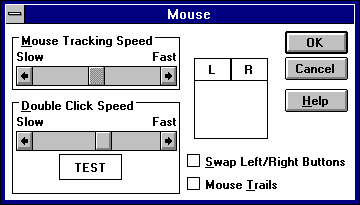
Turn on Windows pointer trails
Open Settings → Bluetooth & devices → Mouse → Additional mouse settings. In Pointer Options, select Display pointer trails, move the Short–Long slider, then choose OK. Microsoft documents the control in its mouse settings guide.
Start with a short trail and move between a document and the desktop. To turn it off, return to the same tab and clear Display pointer trails. Windows’ pointer size and color controls can also make the stationary pointer easier to find.
Try the webpage example
Open the cursor-trail playground, select Start trail, and move across the teal panel. Yellow squares fade over 650 milliseconds. Pause trail stops and clears the effect; Clear removes existing marks while allowing new ones to appear.
Download the complete example, unzip it and open index.html in a browser. That one file holds the page’s HTML structure, CSS styling and JavaScript behavior.
The code records where the pointer was and when it passed each spot. A repeating drawing step shows the points and removes old ones. It keeps no more than 70 points and ignores touch movement, so a finger swipe does not create the mouse effect.
Change duration, size and color precisely
Open index.html in a text editor and search for the following values:
| Change | Edit in the supplied code | Example |
|---|---|---|
| How long marks remain | Both occurrences of 650 in draw(t) |
Use 350 in the age filter and fade calculation |
| Square size | fillRect and strokeRect |
Replace p.x-4,p.y-4,8,8 with p.x-2,p.y-2,4,4 in both calls |
| Fill color | ctx.fillStyle |
Replace #fae569 with your chosen hex color |
| Outline color | ctx.strokeStyle |
Keep an outline that separates the mark from the panel |
| Maximum stored points | points.length>70 |
Lower the cap for a sparser trail |
Change both lifetime values so the marks fade and disappear together. Change both drawing calls to keep the fill and outline lined up. Save the file and reload after one edit to see its effect.
Put the effect in the right part of a page
The demonstration panel uses position: relative. A canvas, the page’s drawing area, sits over it with pointer-events: none. That last rule lets clicks reach the real link and button below. Keep it when moving the effect into a banner or illustration.
Keep a visible start-and-pause button. The example starts paused and stops when you leave its tab. It also pauses when the device’s reduced-motion setting turns on. The visitor chooses whether to start it again.
After editing, click the controls beneath the canvas and press Tab through the start, pause and clear buttons. Resize the panel to check that the drawing still fits. To change the pointer’s shape, use the retro cursor guide; the trail draws only behind its movement.