Desktop pets: eSheep, oneko and VS Code Pets downloads
Published
Choose eSheep for a desktop companion, oneko for a pointer-following cat in an X11 session, VS Code Pets for an editor panel, or the browser pet for a single webpage. The table links each project’s creator and identifies where the pet runs.
On this page
Download the comparison notebook if you want to record your own device, version, resource use and favorite behavior.
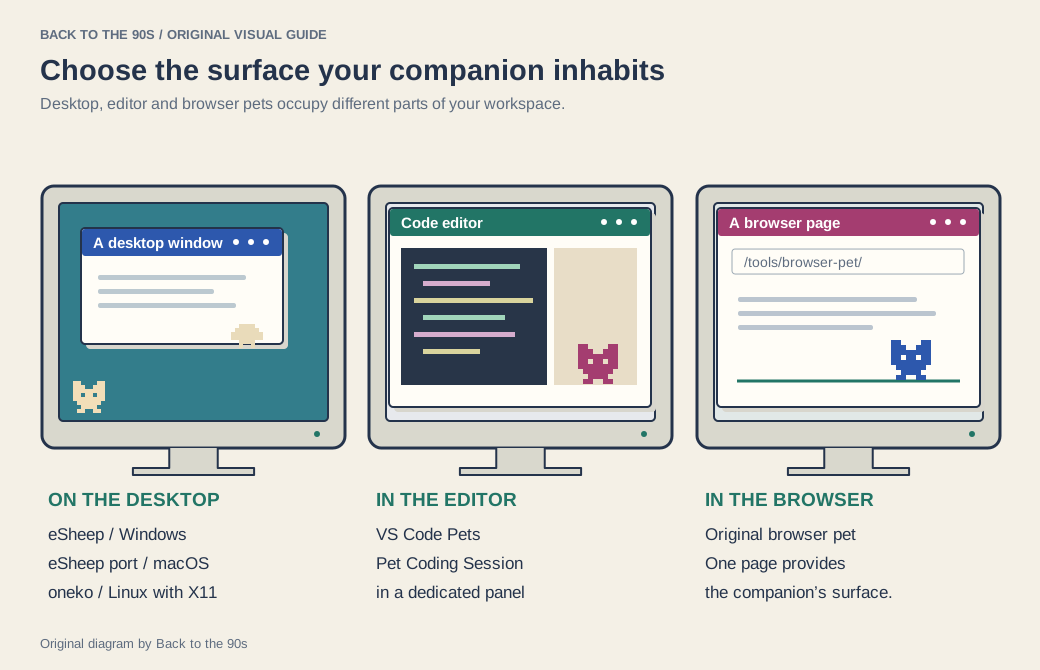
Choose where the companion should live: the desktop, an editor panel or a browser page.
Pick the right surface
| Project | Platform and surface | Interaction | Start here |
|---|---|---|---|
| eSheep / Desktop Pet | Windows desktop | Pets walk, fall and interact with window edges | Adrianotiger’s project |
| eSheep for macOS | Native macOS app | Sheep and other characters roam the screen | Tristan White’s page |
| oneko | Linux with X11 | A cat follows the pointer; variants include a dog | Debian’s package |
| VS Code Pets | VS Code on Windows, macOS and Linux | Pets play inside an editor panel | Creator repository |
| Browser pet | A web page | A small companion inside the page | Our browser pet |
Windows: eSheep / Desktop Pet
Adrianotiger’s 9 November 2026 release post introduces Desktop Pet 2.0 with interactions between pets, climbing at window edges and additional animations. The current README lists the Windows portable build as 2.0.0, compiled with .NET 4.7. The creator lists 64-bit Windows 10 and 11 among its supported systems. Its XML animation format lets makers change the pets and their behavior.
Open the Windows 2.0.0 release, extract the archive and keep the portable executable in its own folder. Launch it, add one pet and watch how it moves around a normal application window. Use the project’s startup option when you want it to launch with Windows.
The project lists the Windows Store package as 2.7.200 (application 2.0.0). Its browser 1.2.6 and Android 1.4.0 ports follow separate version lines; the Windows release number does not describe those downloads. The macOS option below comes from a separate creator.
Close the Windows application through its controls when you finish. Remove a portable copy from its folder, or uninstall a Store copy through Windows’ installed-app controls.
macOS: Tristan White’s eSheep port
Tristan White’s eSheep supplies a free native macOS application through a DMG download. The creator describes a menu-bar interface for adding and removing sheep, plants, aliens and other characters.
Use the creator’s page to choose the current download, then explore the menu-bar controls. Start with one character so you can see how it behaves around your usual windows.
Use the application’s quit control to end the session. If you remove it later, quit first and remove the application through your normal macOS app-management workflow.
Linux: oneko in an X11 session
Debian’s oneko package describes a cat that chases the cursor and a dog variant that follows a bone. The package uses X11 libraries and provides menu and command-line routes.
On Debian, check the session type in a terminal with echo "$XDG_SESSION_TYPE". For an X11 session, install and run the package:
sudo apt install oneko
oneko
Keep that terminal open for the session; press Ctrl+C there to stop the cat. The Debian package page lists its X11 dependencies.
The session type matters because this implementation belongs to the X11 desktop model. For a companion inside an application on another Linux setup, the VS Code route below gives you a different surface to choose.
To remove the Debian package, run sudo apt remove oneko.
Inside an editor: VS Code Pets
VS Code Pets, maintained by Anthony Shaw and contributors, places animated pets inside Visual Studio Code. The project credits individual artists for its characters and environments and documents interactions such as adding pets and throwing a ball.
Open VS Code’s Extensions view, search for vscode-pets and select the extension published by tonybaloney. After installation, open the Command Palette and run Pets: Start Pet Coding Session. The project documentation explains further commands and settings.
Close the pet view to clear the panel from your workspace. Use VS Code’s extension management controls to disable or uninstall the extension when you want to remove its functionality.
Inside a browser page
Open our browser pet when you want the companion to belong to a single web page. Closing that page ends the visible session. The make a browser pet guide explains the small pieces involved if you want to build your own character.
That page-based approach also fits a personal website: the character can become part of the site’s own little world, alongside its links, artwork and writing.
Compare what matters to you
Watch one pet at rest and during movement. Notice whether it crosses text you are reading, responds to your pointer or stays inside a dedicated panel. If you measure CPU or memory, record the device, version, pet count and observation period in the CSV notebook.
Those details make a comparison useful. A character that delights you for five minutes may suit an occasional visit; another may become a quiet part of your workspace. For the history behind the idea, read screenmates and desktop pets.