Blinkies: make tiny animated badges for your website
Published
A blinkie is a small animated badge saved as a GIF image file. It is commonly 150 × 20 pixels and displays a short phrase, interest or joke. Make one from two frames, or pictures: keep the words still and change one detail. The result fits beside an introduction or inside a personal collection.
On this page
Our example says Small site, big ideas. Download its GIF, still image and two frames, then compare how the same message feels in motion and at rest.

Start with the format
blinkies.cafe describes blinkies as 150-by-20-pixel animated GIF badges.
A blinkie often expresses something about the page’s owner. An 88x31 button more often acts as a compact link to a site or project. You can link either kind of image; a wide blinkie leaves more room for words, while a button is taller.
Blinkies come from different periods. blinkies.cafe makes new ones today, and we made the GIFs in our download for this guide. When studying an older badge, keep the original page and archive date with the image.
Write a message that fits
Begin with a phrase you could say in one breath: “I collect tiny games”, “Currently drawing clouds”, or “Ask me about my garden”. Read it aloud and remove a word wherever the meaning stays clear.
Choose one detail to stand out. A star beside a word, a bright border or a changing background can provide it. Keep the letter shapes stable while you decide how much movement the design needs.
Make your first version
Use our blinkie maker to choose your wording, background, letter color and border, then download a GIF or still image. For ready-made templates, blinkies.cafe offers wording, style, font and scale controls, plus a control to freeze its gallery.
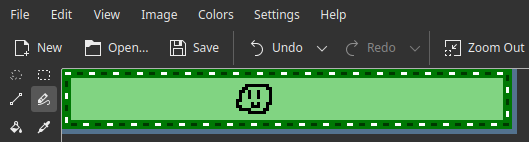
For an original design, create a 150 × 20 pixel canvas in an animation editor. Add a one-pixel border and place the words inside it. Duplicate the frame, change only the border color, and show each frame for 500 milliseconds (half a second) for a one-second loop. Export both frames as a looping GIF; export the first frame as a still PNG.
Compare frame-1.png with frame-2.png in the download. You can replace the wording, alter the border or draw your own tiny object while keeping the same basic rhythm.
Check it at its actual size
View the image at 150 by 20 pixels before judging it. Enlarged pixels help you edit; the actual size tells you whether the words are clear.
Look at the gaps inside letters and between words. If the line feels crowded, shorten the message before reducing the type. Give the text a stable background and use the border for extra detail.
Place the blinkie beside ordinary page text. Its color and movement will feel stronger in that setting than they do alone in an editor.
Add the badge to a page
Upload the GIF beside your other images and use its exact filename in the code:
<img src="small-site-blinkie.gif"
     width="150" height="20"
     alt="Small site, big ideas">
The alt text is a written description for people who cannot see the image. Use the badge’s words when they carry its message. For a linked badge, use the alt text or nearby words to explain where the link leads. Our embedding guide shows both patterns.
Keep a small record of where each graphic came from. For an original badge, keep its editable source. For somebody else’s work, keep the creator’s credit and their rules for sharing or changing the image with the file. blinkies.cafe links its original blinkies to a CC BY 4.0 license, which asks you to credit the creator when you share the work.
If the badge’s words need explanation, write that explanation as ordinary page text.