How to add buttons and blinkies to a Tumblr theme
Published
Put a button or blinkie in your Tumblr blog’s custom theme by adding an image tag to the theme HTML. You need the image’s HTTPS address and, if the image should be clickable, the address of its destination.
Open the theme editor
- On the web, open Tumblr’s Settings and select your blog.
- Under Custom theme, turn on “Enable custom theme”, then choose “Edit Theme”.
- Choose “Edit HTML”. Save a copy of the current code before changing it.
The custom theme appears at your blog’s own address, such as blogname.tumblr.com. It does not change the dashboard. Tumblr says theme customisation is available on the web.
Add the image
For a first try, search the theme code for </body> and paste the example immediately before it. This adds the code near the end of the page. Themes have different layouts, so check where the badge appears in the preview. If you cannot find the closing body tag, ask the theme maker where to place the code. Replace both addresses with your own. The image address must point directly to an image file you have permission to use.
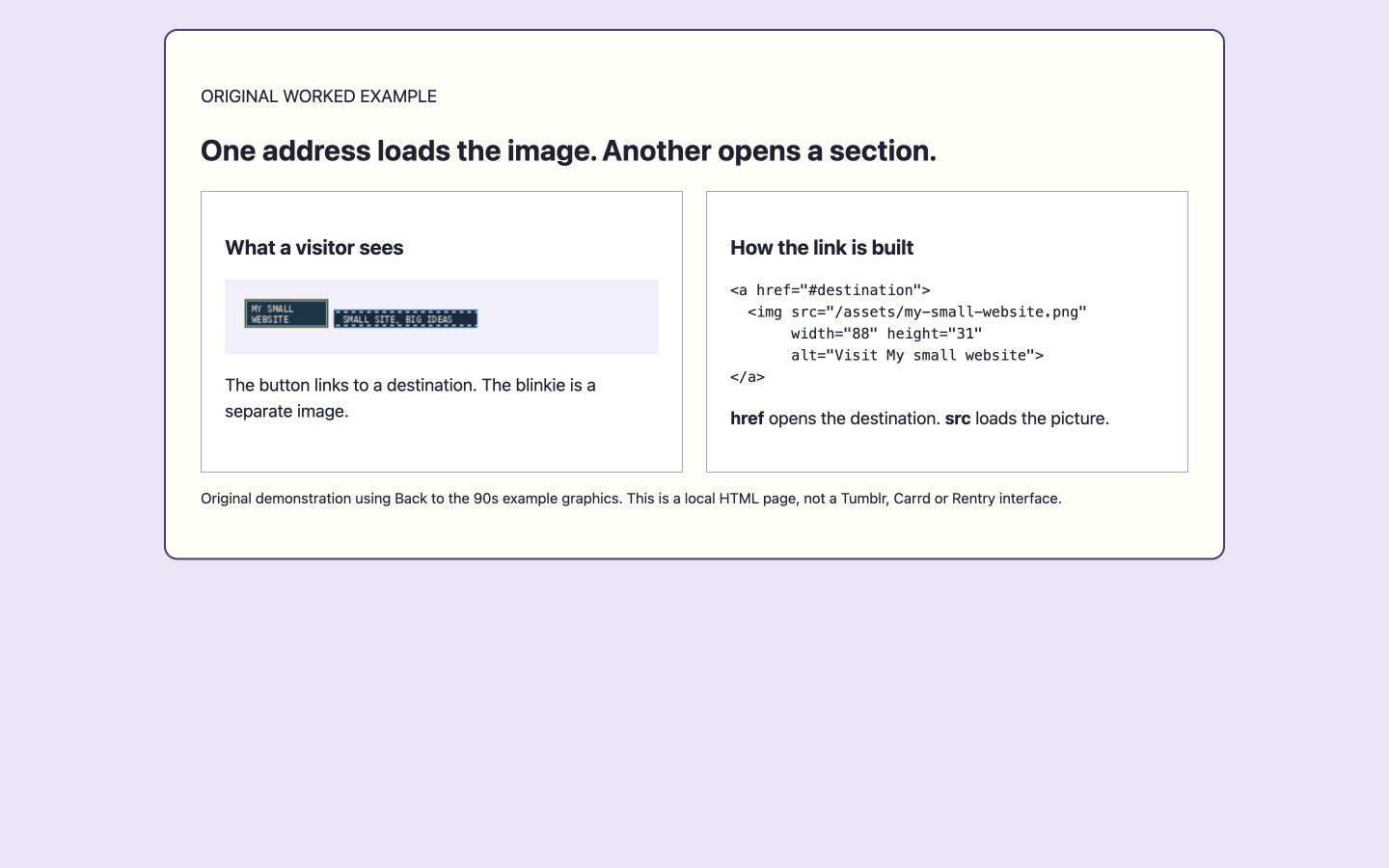
<a href="https://example.org/">
  <img src="https://example.org/button.png" width="88" height="31" alt="Visit Example">
</a>
The first address is the destination; src is the image. For a blinkie, use its actual dimensions instead of 88 and 31. Alt text is a text alternative for visitors who cannot see the image. For a linked badge, use alt text that says where the link goes or what it does, such as “Visit Example”. For a badge that is not a link, use its message as the alt text when the words carry its meaning. Tumblr’s Theme assets can host theme files; use HTTPS addresses.
Preview and save
Choose “Update Preview”, check that the image and link work, then use the back arrow and “Save”. Visit the blog’s own address to check the result. If the image is missing, check the full image address and HTTPS first. If it appears in the wrong place, restore the saved code and consult your theme maker’s placement instructions before trying another location.
For image formats and arranging several badges, see our general badge guide.